Google Vids Free AI Video: How to Use It (2026 Guide)
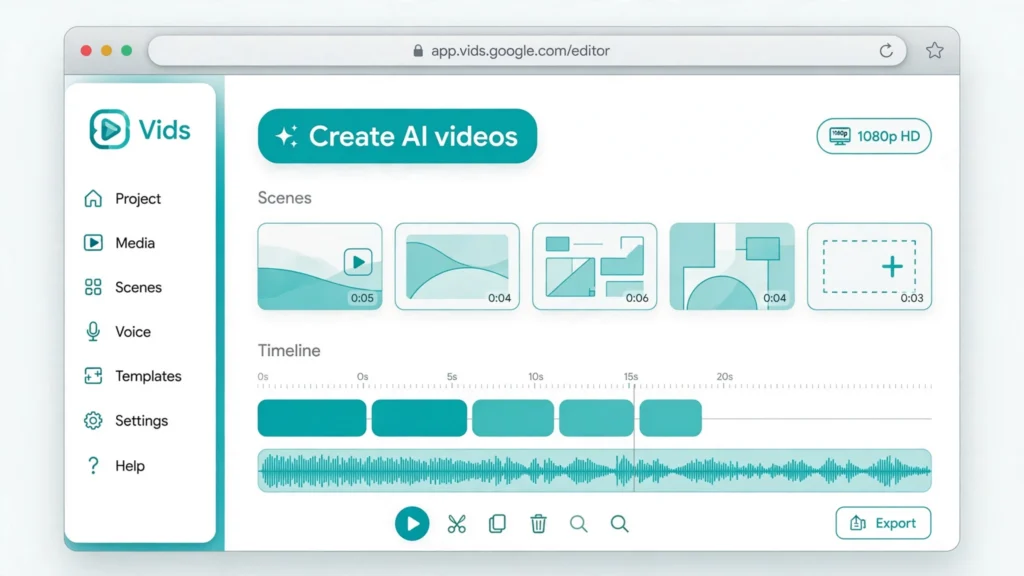
On September 23, 2026, Google made AI video generation free for anyone with a Google account — right inside Google Vids. You can now create AI video scenes in 1080p HD at no cost using the Gemini Omni 1.1 Flash model — no subscription, no credit card. To use it, open vids.new on a desktop browser, sign in, and select “Create AI videos.” This guide walks you through exactly how Google Vids works, what’s actually free, the limits nobody talks about, and how to get the best results.
What Is Google Vids?


Google Vids is Google’s browser-based video creation tool. It launched in 2024 as a professional tool for turning documents and slides into narrated videos, and it has grown into a full AI video editor. You don’t install anything — it runs entirely in your browser at vids.new, and your projects save to your Google account like Docs or Slides.
Until September 2026, the serious AI generation features inside Google Vids were locked behind paid plans. The September 23 announcement opened them to every Google and Google Workspace account holder at no cost.
What Google Announced on September 23, 2026
Google’s official announcement (published on the Google Blog by Justin Luk, Product Manager for Google Vids) introduced Gemini Omni 1.1 Flash inside Google Vids for all users. The key points, straight from Google:
- Free AI video generation for anyone with a Google or Google Workspace account — no paid plan required.
- Gemini Omni 1.1 Flash powers the generation: it turns text prompts (and photos) into video scenes.
- 1080p HD output — generate brand-new AI scenes in full HD, or upscale older AI clips to match.
- Creative controls — extend scenes, set exact clip durations, and keep characters and lighting consistent.
- Access point: visit vids.new on desktop and select “Create AI videos.”
Google’s stated goal: let people create videos “without professional editing skills or a big budget.” The launch made headlines — WebProNews reported that Google opened 1080p AI video generation to all accounts, though hands-on tests suggest real-world output can vary.
What’s Actually Free (and What Isn’t)


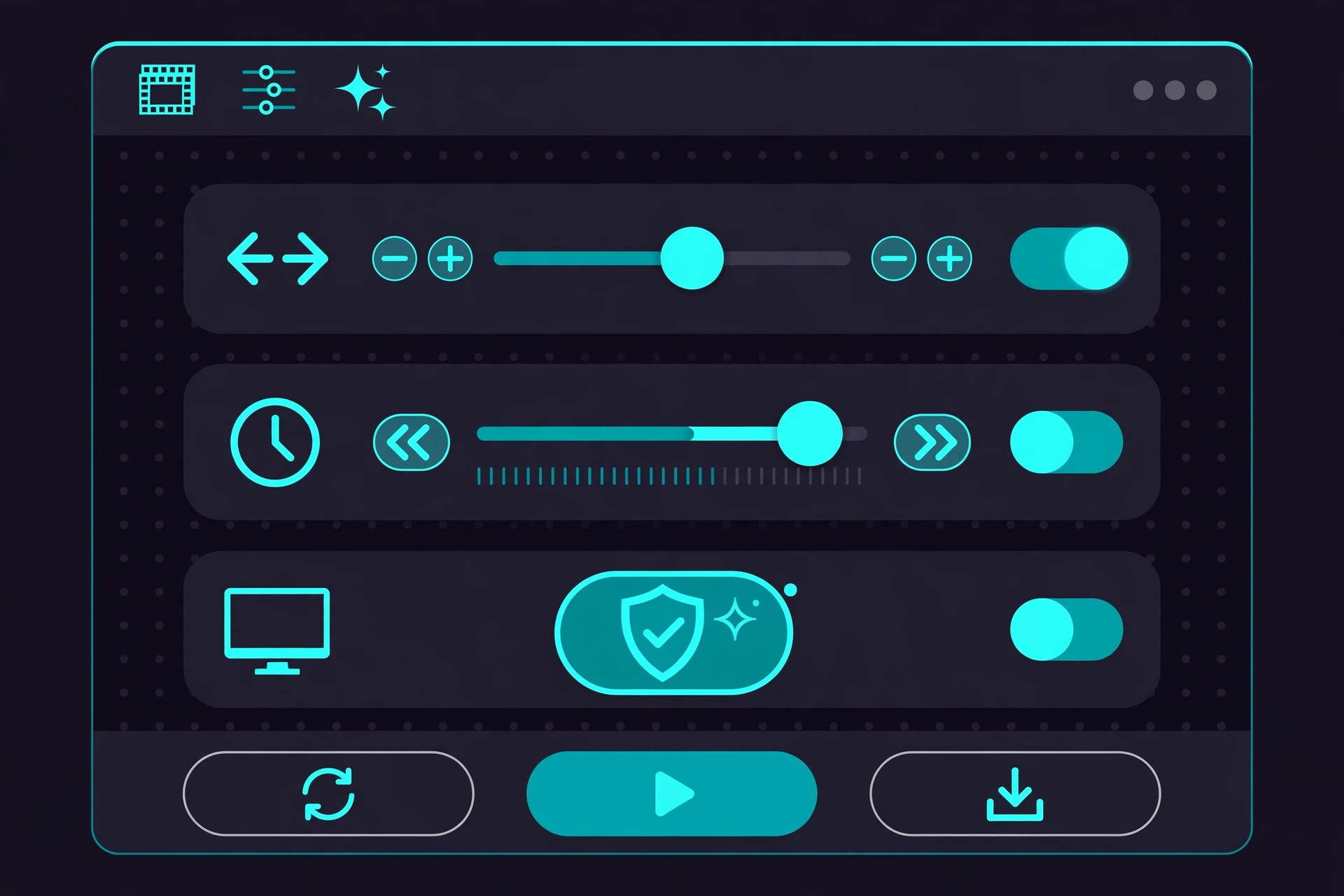
“Free” is real here — but it has boundaries. Here’s the honest breakdown based on Google’s announcement and independent reporting:
| Feature | Free tier | Notes |
|---|---|---|
| AI video generation (Omni 1.1 Flash) | Yes — at no cost | For all Google / Workspace accounts |
| 1080p HD output | Advertised | One hands-on test reported receiving 720p output in practice |
| Scene extension | Yes | Keeps lighting, characters, environment consistent |
| Exact duration control | Yes | Set precise clip lengths |
| Upscaling old AI clips | Yes | Bring older clips up to HD |
| Monthly generation quota | Limited | Google hasn’t published an exact number; reports cite around 6 generations/month for personal accounts |
| Text-to-speech voiceover | Coming soon | Not live yet — don’t expect it today |
| Mobile generation | No | Desktop only for creating; phones can only view finished videos |
The biggest caveat: Google has not published an exact free-tier quota for the new Omni 1.1 access. TechRepublic, citing Google’s Vids help documentation, reported around six AI video clip generations per month for personal accounts. Other reports have cited different numbers. Treat any specific number you see online as approximate — and check Google’s own Vids help pages for the current figure before planning a big project.
Requirements: What You Need Before You Start
- A Google account — any free Gmail/Google account works. Google Workspace accounts work too.
- A desktop browser — generation and editing are desktop-only. You can view finished videos on mobile, but you can’t create or edit them there.
- No credit card, no subscription — the free tier genuinely requires neither.
- Realistic expectations — this is a monthly-allotment free tier, not unlimited generation. Paid Google AI plans and Workspace Business/Enterprise tiers offer expanded generation pools.
How to Generate Your First AI Video in Google Vids (Step by Step)
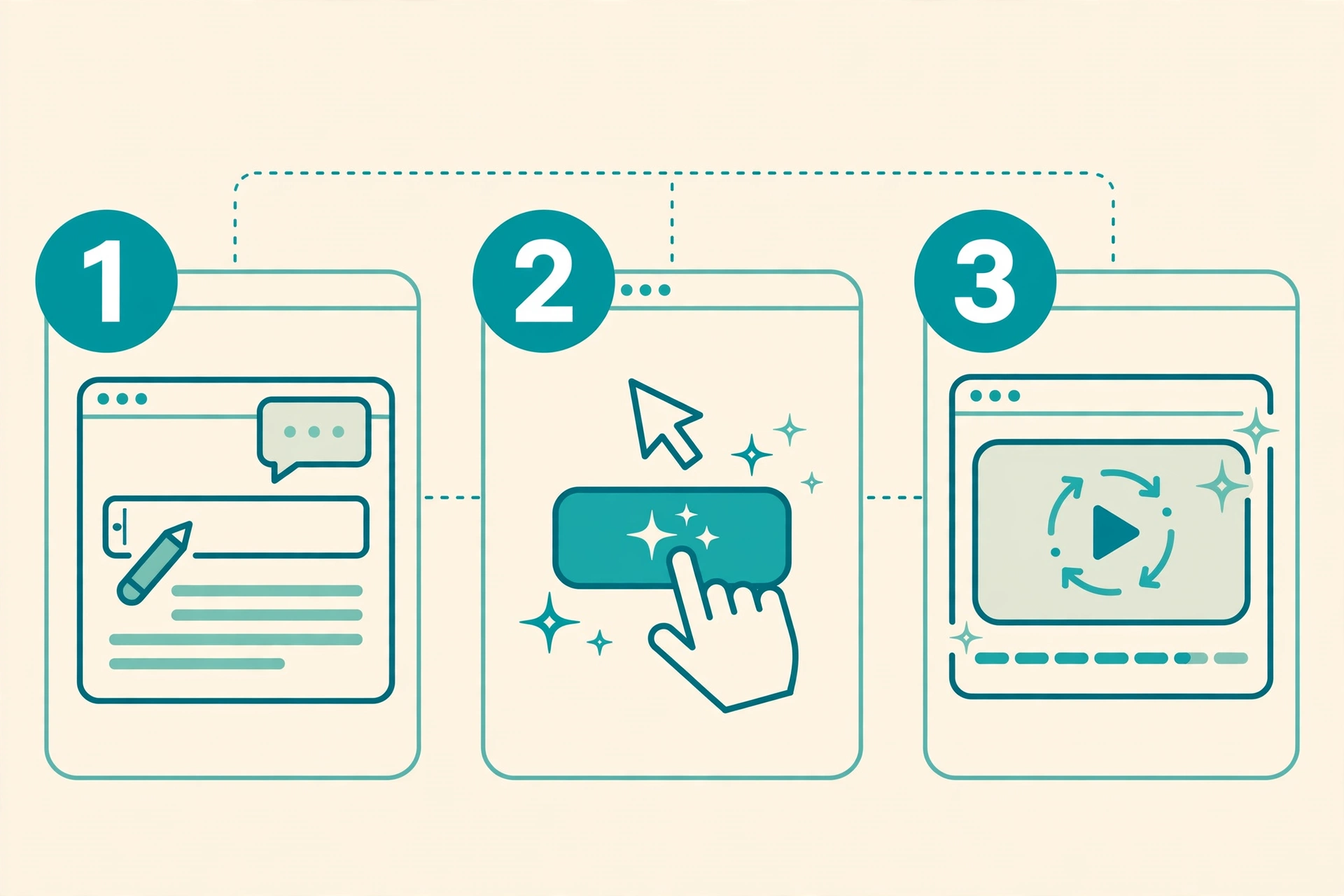
Follow these steps — they come directly from Google’s official instructions:
- Open vids.new on a desktop browser. Type vids.new into your address bar. This is Google’s shortcut straight into Google Vids.
- Sign in with your Google account. Use any Google or Google Workspace account. There’s no separate signup for Vids.
- Start a new video project. Create a new Vids project from the dashboard — this becomes your timeline.
- Select “Create AI videos.” In the Vids creation menu, choose the “Create AI videos” tile. This launches AI scene generation powered by Omni 1.1.
- Describe the scene you want. Type a clear text prompt describing your video scene — subject, action, setting, and style. (See the prompt tips below.)
- Set the duration. Use the duration control to choose the exact length of your clip so it fits your story or voiceover.
- Generate and review. Generation is fast — one hands-on test produced a short clip in under 30 seconds. Review the result on your timeline.
- Extend or refine. If the scene needs to run longer, use scene extension to lengthen it while keeping lighting, characters, and the environment consistent.
- Upscale if needed. Older or lower-resolution AI clips can be upscaled toward 1080p to blend with the rest of your timeline.
- Export and share. Finish your edit on the timeline and export your video.
That’s the complete verified workflow. Anything beyond these steps (exact button labels inside sub-menus, for example) can shift as Google updates the interface — if something looks different, the “Create AI videos” entry point is the anchor to look for.
Prompt Tips for Better Results in Google Vids
Google’s big pitch for Omni 1.1 is “direct your story, don’t just prompt it” — but your prompt still decides the starting quality. These principles work across AI video tools, including Google Vids:
- One clear subject + one action. “A barista pouring latte art in a sunlit café” beats “a nice coffee video.”
- Lock the setting. Name the environment, lighting, and time of day: “golden-hour light, modern kitchen, shallow depth of field.”
- Describe camera behavior. “Slow push-in,” “static wide shot,” or “gentle pan left” gives the model direction.
- Keep it short. One to two sentences. Overstuffed prompts produce muddled scenes.
- Use scene extension for consistency. Instead of generating five separate clips and hoping they match, generate one strong scene and extend it — that’s exactly what the feature is for.
- Plan around your quota. With a small monthly allotment, draft your prompts carefully before generating rather than burning generations on experiments.
For a deeper dive into prompt craft, see our guide on writing AI prompts that actually work — the same principles apply to video.

Limitations You Should Know Before You Rely on It
- Monthly quota is small and vaguely defined. Around six generations per month for personal accounts has been reported, but Google hasn’t published a firm number. Don’t plan a 50-video campaign on the free tier.
- Desktop only. You cannot generate or edit on a phone or tablet — only view finished projects.
- 1080p is advertised; real output may vary. One hands-on test could only produce 720p clips despite the 1080p option. Your mileage may vary.
- Every clip carries an invisible SynthID watermark. Google embeds its DeepMind watermark into every AI-generated frame so viewers can verify the content is AI-made. It’s invisible to the eye, but it’s there.
- No text-to-speech yet. The Gemini 3.8 Flash-Lite voiceover feature (100+ languages) is officially “coming soon.” If you need narration today, record it separately.
- Short clips, not films. AI scenes are short building blocks — you assemble the story on the Google Vids timeline.
Google Vids vs Other Free AI Video Tools
How does free Google Vids compare to the alternatives? A quick, honest snapshot:
| Tool | Free offering | Standout strength | Catch |
|---|---|---|---|
| Google Vids | Free 1080p AI scenes (limited monthly quota) | Full timeline editor + Google ecosystem built in | Desktop only; quota small and vaguely defined |
| Runway / Pika / Kling | Free tiers with credits | Specialized generation quality and styles | Watermarks or tight credit limits on free plans |
| Google Flow | Daily free credits | Access to Veo models | Credit costs per generation; peak-hour limits |
Vids’ real edge isn’t raw generation quality — it’s that generation lives inside a real editor connected to your Google Drive and Photos. For explainers, promos, and presentations, that matters more than squeezing out one more photorealistic clip. For a broader roundup, see our best free AI video generators and the main free AI video generator guide.
Yes. Since September 23, 2026, anyone with a Google or Google Workspace account can generate AI videos in Google Vids at no cost — no subscription, no credit card. The free tier has a limited monthly generation quota, and paid plans offer more.
The Bottom Line
Google giving away 1080p AI video generation to every Google account is a genuine shift — the same capability lived behind paid plans weeks ago. Go to vids.new on desktop, hit “Create AI videos,” and you can be generating scenes in under a minute. Just go in with open eyes: the monthly quota is small, it’s desktop-only, every clip carries an invisible watermark, and the voiceover feature hasn’t arrived yet.
Want help writing better prompts for it? Ask Shaheer GPT — our free AI chat can draft video prompts, scripts, and ideas in English, Urdu, or Roman Urdu.