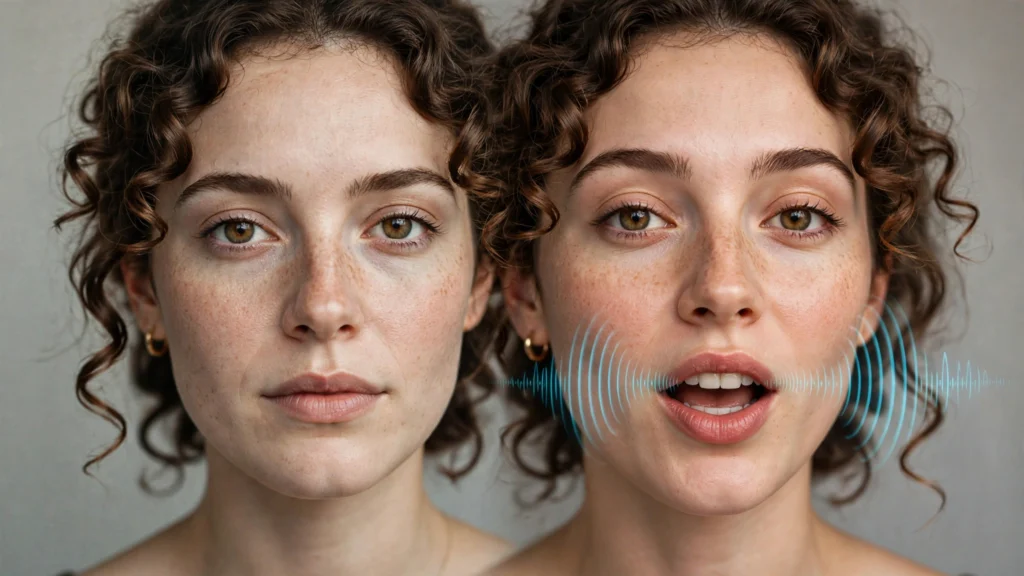
An AI talking head video turns a still photo into a speaking, moving presenter — you type a script, pick a voice, and the AI animates the face with synced lip movement. No camera, no microphone, no filming yourself ten times. In this guide you’ll learn how AI talking head generators work, which free tools are worth trying in 2026, and how to make your avatar videos look natural instead of robotic.
What Is an AI Talking Head Video?
Specifically, a talking head video is exactly what it sounds like: a video of a person’s head and shoulders speaking directly to the viewer — the format behind YouTube explainers, online courses, ads, and LinkedIn posts. An AI talking head generator creates this format synthetically: you supply a portrait photo (yours, a stock model, or an AI-generated face) and a script, and the tool produces a video of that face speaking your words with realistic lip-sync, blinks, and subtle head motion.
Two flavors exist:
- Photo animation (talking photo): First, upload any portrait and animate it. Tools like D-ID specialize in this — even paintings or pet photos can be made to “speak.” Fast and flexible, but quality depends heavily on the input photo.
- Studio avatars: choose from a library of AI presenters (HeyGen offers 300+ stock avatars) or create a digital twin of yourself. In contrast, studio avatars are more polished and consistent, usually behind a subscription.
Unlike general text-to-video tools that generate 5–10 second cinematic clips, talking head platforms output complete presenter videos — 30 seconds to several minutes, with voice included. They’re built for a different job: communication, not b-roll. If you want cinematic clips instead, start with our free AI video generator guide.
How AI Talking Head Generators Work


The pipeline has four stages:
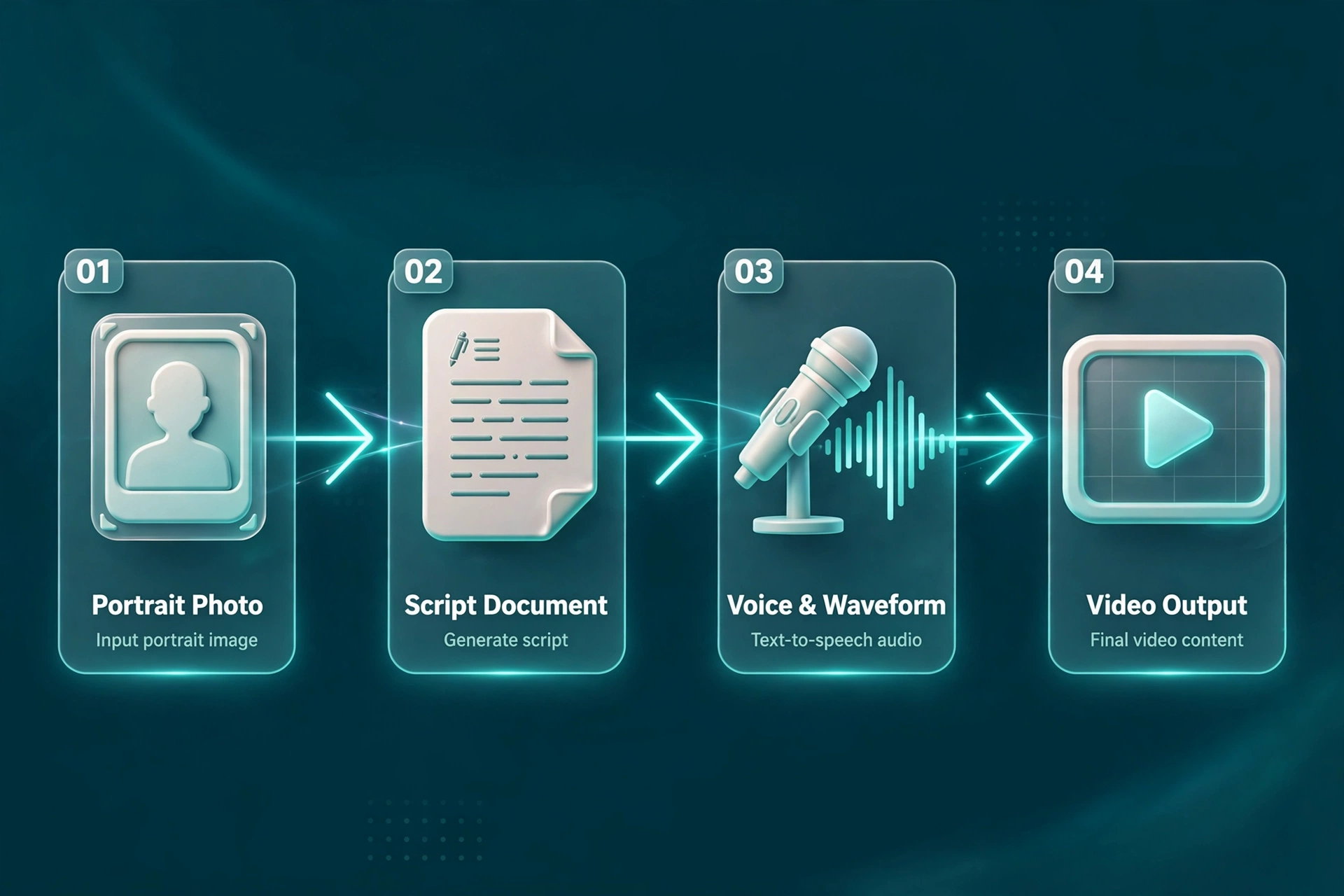
- Avatar input: upload a clear, front-facing portrait (good lighting, neutral expression works best) or pick a stock avatar.
- Script: type or paste your text. Most tools let you write directly or auto-generate a script from a prompt.
- Voice: choose from 100+ stock voices across dozens of languages — or clone your own voice on supported plans, so the avatar speaks as “you.”
- Render: Finally, the AI maps phonemes to mouth shapes, adds natural motion (blinks, nods, breathing), and outputs an MP4.
Modern lip-sync is measured in MOS (mean opinion score) — top tools like HeyGen score around 4.7/5 for raw lip-sync quality. The uncanny valley hasn’t fully disappeared, but for social content, ads, and training videos, current output is firmly in “good enough” territory.
Best Free AI Talking Head Tools in 2026
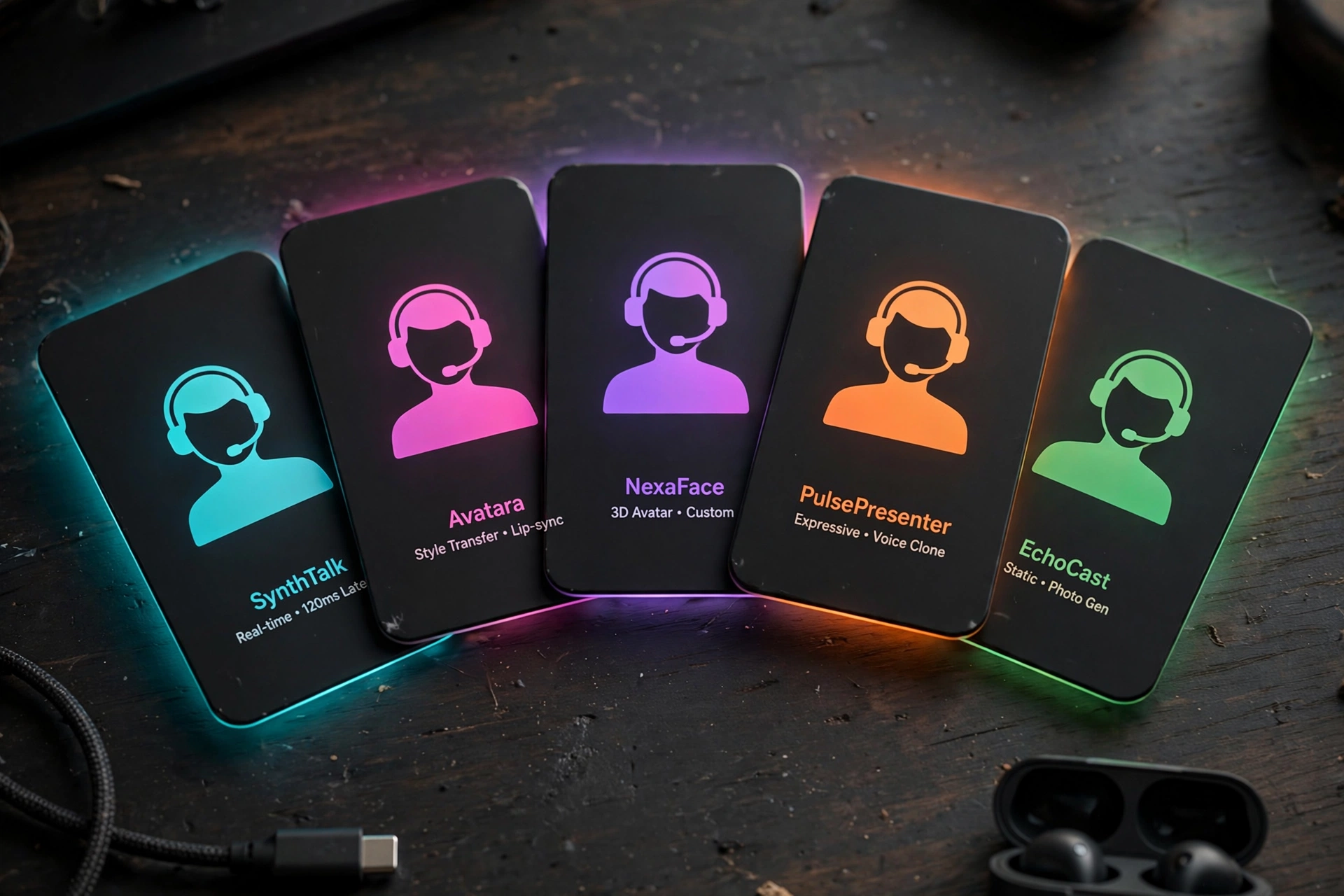
Free tiers exist, but they’re all limited — here’s the honest landscape:
| Tool | Best for | Free tier | Paid from |
|---|---|---|---|
| HeyGen | Highest-quality avatars, 300+ stock presenters, 4K | ~3 min/month | ~$29/month |
| D-ID | Animating any photo; API-first | Short clips (~15 sec) | ~$5.90/month |
| Synthesia | Corporate training at scale, scene editor | No free tier (trial) | Subscription |
| Colossyan | Multi-avatar dialogue scenarios | 14-day trial | Subscription |
| CapCut | Free editing + basic talking avatar for social | Generous free plan | Free tier usable |
These figures come from third-party roundups and vendor pages — free allowances change often, so check the current pricing page before planning a project. A few notes:
- HeyGen sets the quality bar (175+ languages, up to 4K) but its free tier is thin — it’s a trial, not a workflow.
- Meanwhile, D-ID is the cheapest entry point and the most flexible with input photos.
- In addition, Synthesia targets teams doing training videos at volume, with compliance-friendly features.
- CapCut won’t match HeyGen’s realism, but for TikTok/Reels talking clips its free tier is genuinely usable, and it handles captions and effects in the same app.
How to Make a Talking Head Video: Step by Step

Step 1: Pick your avatar photo
First, use a high-resolution, front-facing portrait with even lighting. Avoid sunglasses, heavy shadows, or extreme angles — the AI needs clear facial landmarks. If you’d rather not use your own face, generate one with an AI portrait tool or pick a stock avatar.
Step 2: Write a spoken-style script
Write like you talk, not like you write. Short sentences. Contractions. Read it aloud — if you stumble, the AI voice will too. Finally, keep it under 150 words per minute of video (about 60 seconds ≈ 130–150 words).
Step 3: Choose or clone the voice
Match the voice to the persona: a young product demo wants an energetic voice; a training video wants calm and clear. If the tool supports voice cloning, a 1–2 minute clean recording of your voice gives the most personal result. Lastly, for voice-only needs, our best free AI voice generators roundup covers the options.
Step 4: Generate and review
Next, render a draft and watch for the three classic artifacts: lip-sync drift on fast speech, frozen blinking (uncanny stare), and weird teeth on wide smiles. Instead, regenerate the worst 10 seconds rather than accepting them.
Step 5: Edit like a normal video
Add captions (most viewers watch muted at first), b-roll or screen recordings over long explanations, and background music at low volume. CapCut or any editor works — the avatar clip is just footage. Finally, for vertical platforms, frame it 9:16 from the start; our aspect ratio guide shows how.
5 Mistakes That Make Avatar Videos Look Fake
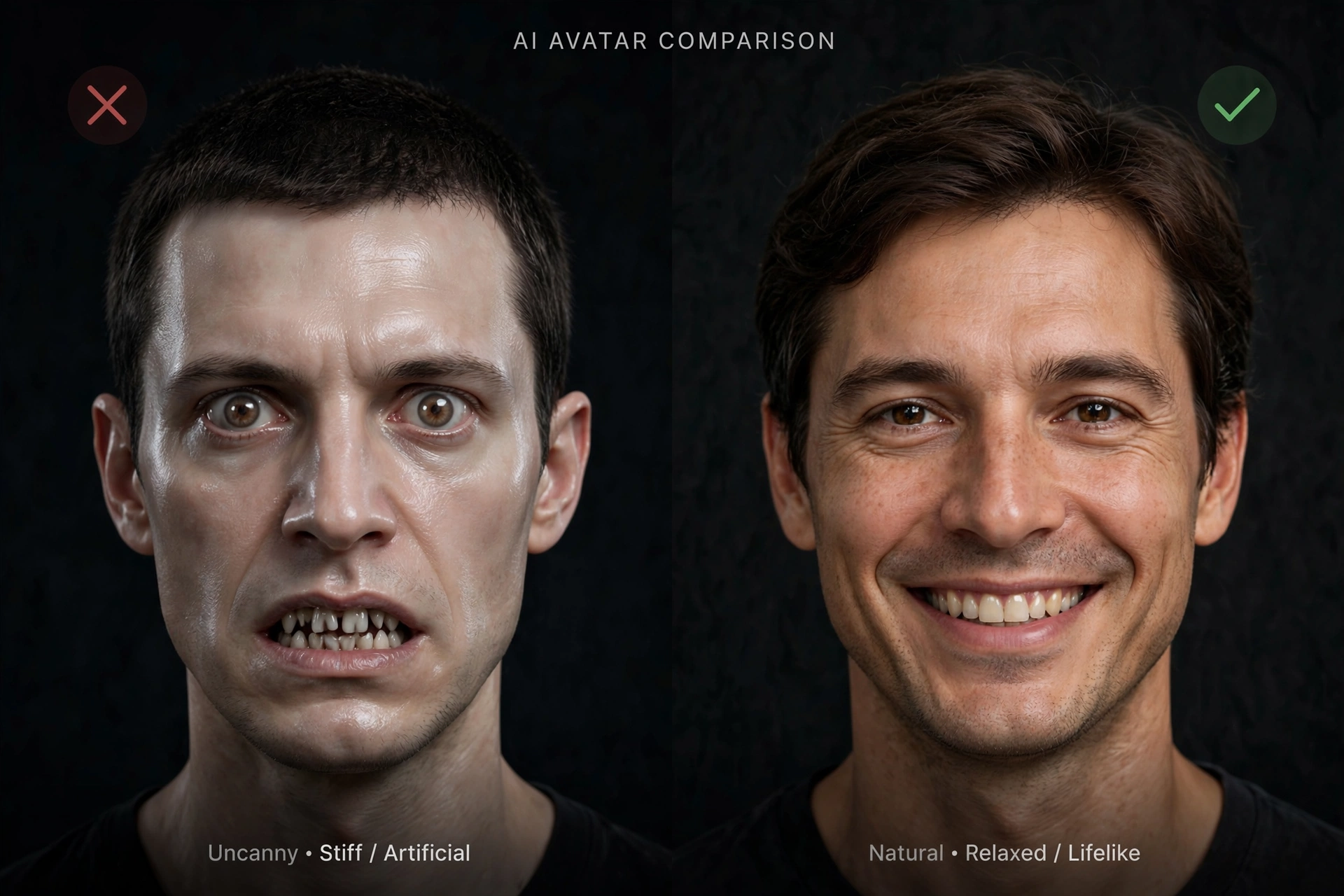
- Bad input photo: low-res or side-profile photos produce wobbly faces. So start with a clean portrait.
- Written-style scripts: long, formal sentences sound robotic even with good voices. Instead, write conversationally.
- Ignoring pacing: a 3-minute unbroken talking head loses everyone. Therefore, cut away to visuals every 15–20 seconds.
- Wrong voice match: a deep cinematic voice on a youthful avatar (or vice versa) breaks believability instantly.
- Skipping disclosure: Also, TikTok, Instagram, and YouTube require labeling realistic AI-generated content. So use the platform’s AI label at upload — penalties for undisclosed synthetic media are real.
Where Talking Head Videos Work Best
- UGC-style ads: for example, one spokesperson persona, a dozen script variations, rapid creative testing — this is the highest-ROI use case.
- Online courses & training: update the script without re-shooting; localize into 175+ languages from one recording session.
- Faceless YouTube/TikTok channels: a consistent avatar becomes the channel’s “face” without you ever filming.
- Product demos & explainers: avatar intro + screen recording body is a proven format.
- LinkedIn thought leadership: short talking clips outperform text posts for reach — keep them under 90 seconds.
Yes. Upload a portrait photo to tools like D-ID, HeyGen, or CapCut, add your script, and the AI animates the face with synced lip movement. Specifically, a clear, front-facing, well-lit photo gives the best result.
The Bottom Line
Overall, AI talking head video has crossed from novelty to utility: a decent photo, a conversational script, and a free-tier tool are enough to produce presenter videos that would have needed a shoot a year ago. Start with CapCut or D-ID’s free tier to learn the workflow, invest in HeyGen or Synthesia when quality or volume demands it, and always label synthetic content. Want help scripting your first avatar video? Finally, ask Shaheer GPT — paste your topic and it’ll draft a spoken-style script for you.