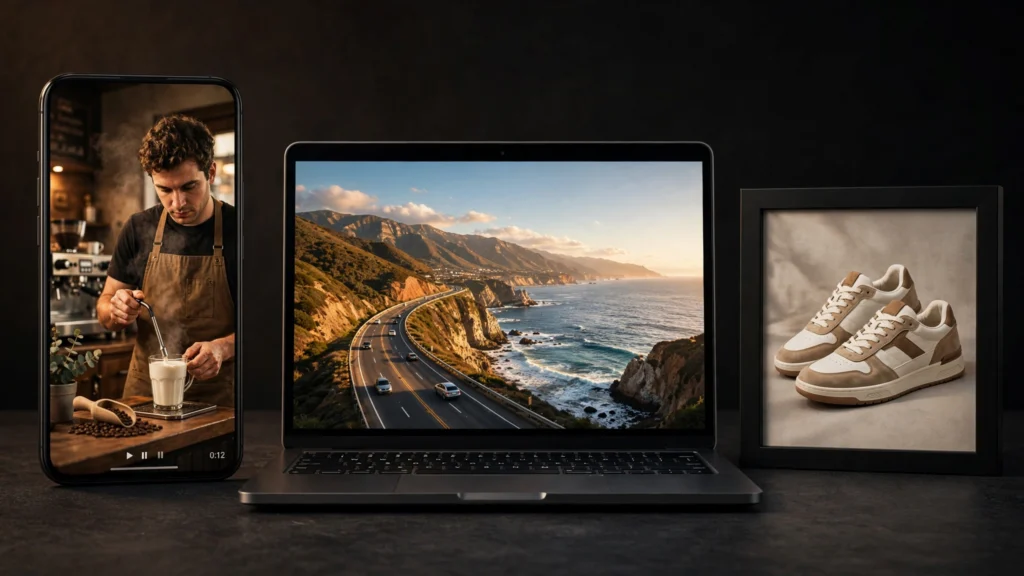
Picking the wrong AI video aspect ratio is the most expensive beginner mistake in AI filmmaking — generate a beautiful 16:9 clip for TikTok and you’ll either crop away your subject or pay to render it all over again. So the fix is simple: decide the ratio before you write the prompt. This guide covers which ratio each platform wants, how to prompt AI generators for vertical, widescreen, and square video, and the framing tricks that keep subjects out of the dead zones.
Why Aspect Ratio Comes Before the Prompt
An aspect ratio isn’t just a shape — it’s how you frame the shot. For example, a 16:9 frame is built around horizontal negative space: landscapes, two-shots, motion sweeping across the screen. In contrast, a 9:16 frame is built for upright subjects: one subject, centered, filling the tall frame. Consequently, generate in the wrong one and no amount of clever prompting fixes the framing, because the model composed for a different canvas.
Therefore, the golden rule from working creators: the correct ratio is whatever your final platform plays back in, decided before you write a single prompt. After all, cropping a 16:9 horizontal clip down to 9:16 cuts off subjects and breaks the framing — so set the ratio in the generator.
AI Video Aspect Ratio Cheat Sheet


| Platform | Ratio | Resolution | Notes |
|---|---|---|---|
| TikTok | 9:16 | 1080×1920 | Native vertical, sound-on; keep key action centered |
| Instagram Reels | 9:16 | 1080×1920 | Leave bottom space for captions + UI overlay |
| YouTube Shorts | 9:16 | 1080×1920 | Under 60s; hooks in the first 2 seconds |
| YouTube (standard) | 16:9 | 1920×1080 | Movie-style default; full-screen desktop viewing |
| Instagram feed | 1:1 or 4:5 | 1080×1080 / 1080×1350 | 4:5 takes more screen space in feed |
| X / LinkedIn feed | 1:1 | 1080×1080+ | Square dominates feed engagement |
For instance, if you’re choosing tools for short-form, our best AI tools for YouTube Shorts and Reels roundup covers the generators — this guide covers the formats.
How to Prompt for 9:16 Vertical Video
However, vertical is where most AI video goes wrong, because models default to movie-style widescreen thinking. So be explicit:
- Name the ratio: start with “Vertical 9:16 video” or “portrait mode.” On Pika you can use
-ar 9:16. - Describe the framing: “subject centered in frame”, “framed from chest up so the face and hands fill the tall frame”, “full body visible from head to toe”.
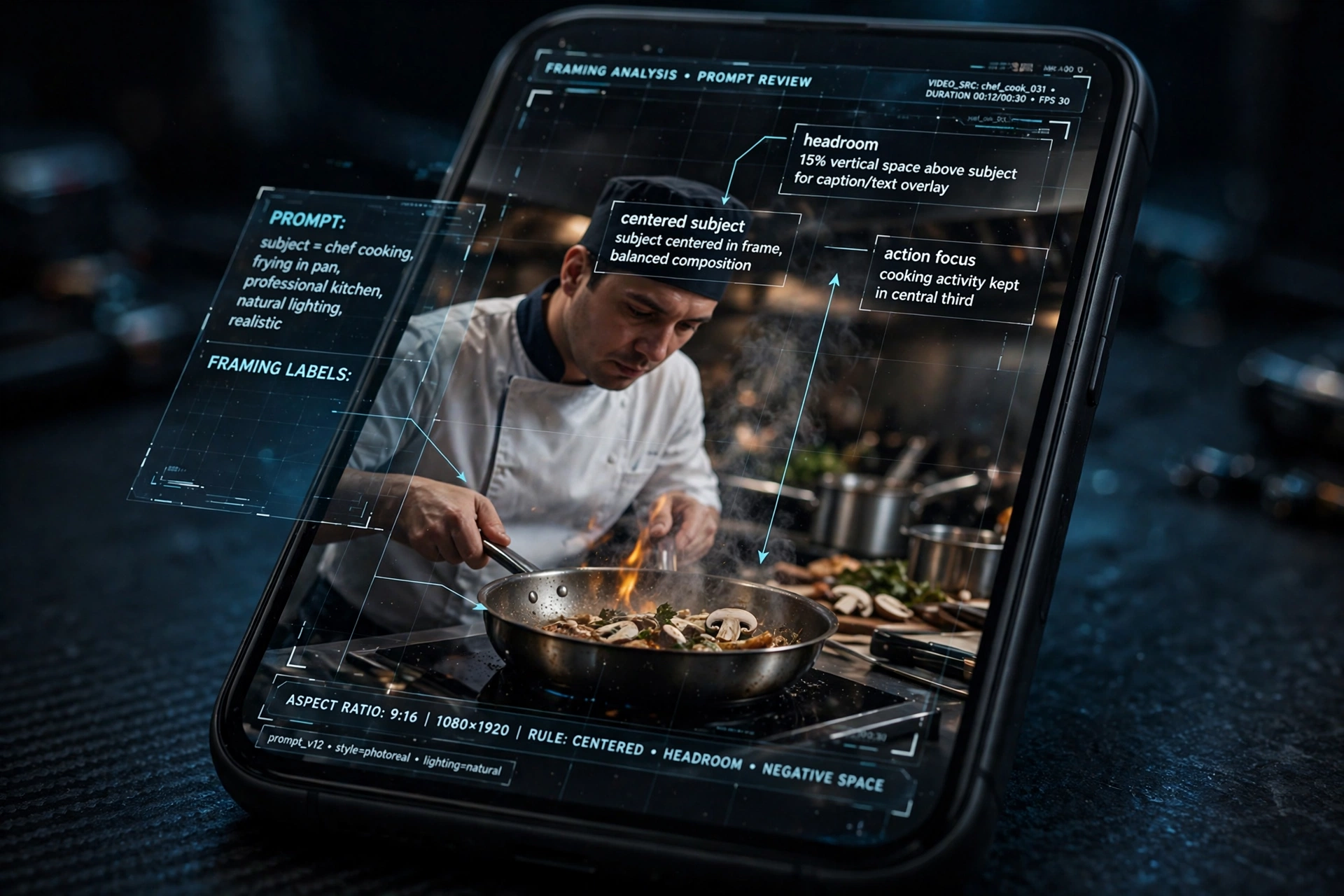
- Control headroom: “with a little headroom above” prevents the model from cropping out your subject’s head or leaving a huge empty gap.
- Reserve caption space: “leave space at the bottom for captions” — platform UI covers the bottom ~15% of vertical video.
- Keep the camera calm: “camera holds steady at eye level” — wild camera moves in vertical often push subjects out of frame.
Copy-ready example:
“Vertical 9:16 video. A barista in an apron pours latte art into a cup, framed from chest up so the face and hands fill the tall frame. Camera holds steady at eye level, subject centered, clean headroom at the top, soft cafe lighting. Leave space at the bottom for captions.”
The key phrases: name the 9:16 vertical frame, keep the subject chest-up and centered, and reserve caption space.
How to Prompt for 16:9 Widescreen


By contrast, widescreen is the models’ comfort zone — but you still need to direct it:
- Use the horizontal room: describe motion across the frame and environment on both sides — “the road sweeping at an angle across the wide frame, mountains on the right, ocean on the left.”
- Name it: “widescreen 16:9 movie-style shot” sets expectations immediately.
- Think in thirds: place subjects off-center with something balancing the other side; centered subjects in 16:9 often feel like TV news.
Example: “Widescreen 16:9 movie-style shot. A drone glides forward over a coastal highway at sunset, the road sweeping at an angle across the wide frame. Slow forward dolly, warm golden light.”
How to Prompt for 1:1 Square
Finally, square loves centered, balanced shots:
- Center everything: “keep the product centered and fully inside the square with even margins on all sides.”
- Go minimal: busy backgrounds fight the format — “simple pastel background, soft shadow beneath.”
- Best for: product shots, feed posts, and looping animations.
5 Aspect Ratio Mistakes to Avoid
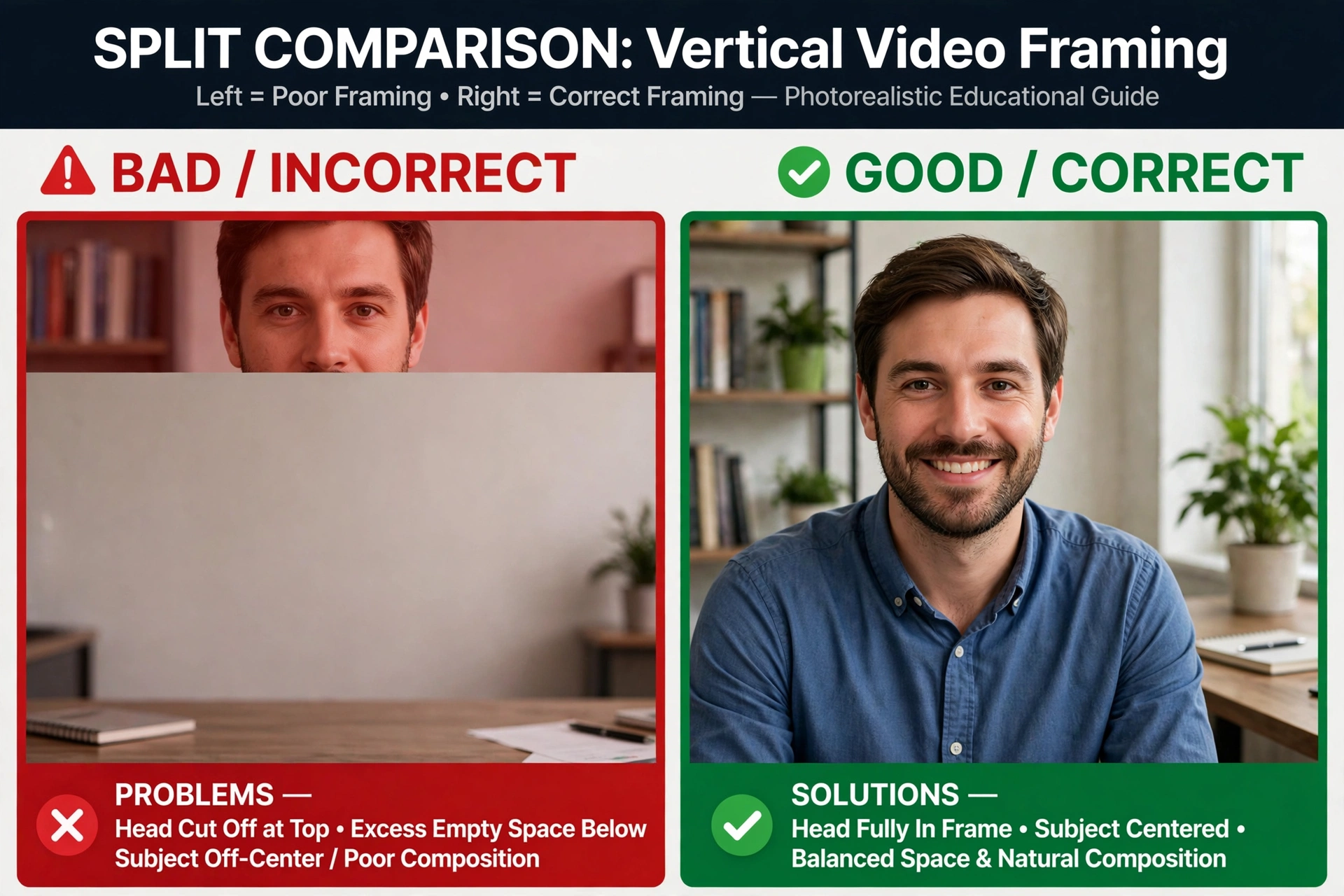
- Generating first, deciding later: the #1 waste — re-rendering the same scene in a new shape costs credits and time. So lock the ratio first.
- Cropping 16:9 to 9:16 in post: you lose over half the frame and usually the subject’s edges. Instead, generate native vertical.
- Ignoring safe zones: TikTok’s UI (username, captions, buttons) covers the right edge and bottom. Therefore, keep faces and key action clear of them — when in doubt, design for the most restrictive platform.
- Subject too close to edges: any motion becomes amputation in vertical. As a result, shoot slightly wider than you think you need.
- Wasted vertical space: a huge empty gap above or below the subject screams “cropped horizontal.” Instead, zoom in or reframe to use the tall frame.
For camera-move language that works in any ratio, see our AI video prompts guide — and if your subject keeps changing face between clips, the character consistency guide fixes that.
Negative Prompts for Clean Framing
For example, on tools that support negative prompts (Runway, Kling, and others), add framing guards:
cropped, cut off, half-body, out of frame, black bars, letterboxing, watermark, text overlay
Still, these won’t fix bad framing, but they suppress the most common framing failures — especially heads clipped by the top edge in vertical video.
One More Thing: Label Your AI Videos
TikTok, Instagram, and YouTube all require you to label realistic AI-generated content, with built-in labeling tools at upload. On the other hand, stylized or clearly animated content usually doesn’t need labels, but realistic AI footage must be marked — hidden AI-made footage risks less reach or strikes. Therefore, build the label into your upload checklist, not as an afterthought.
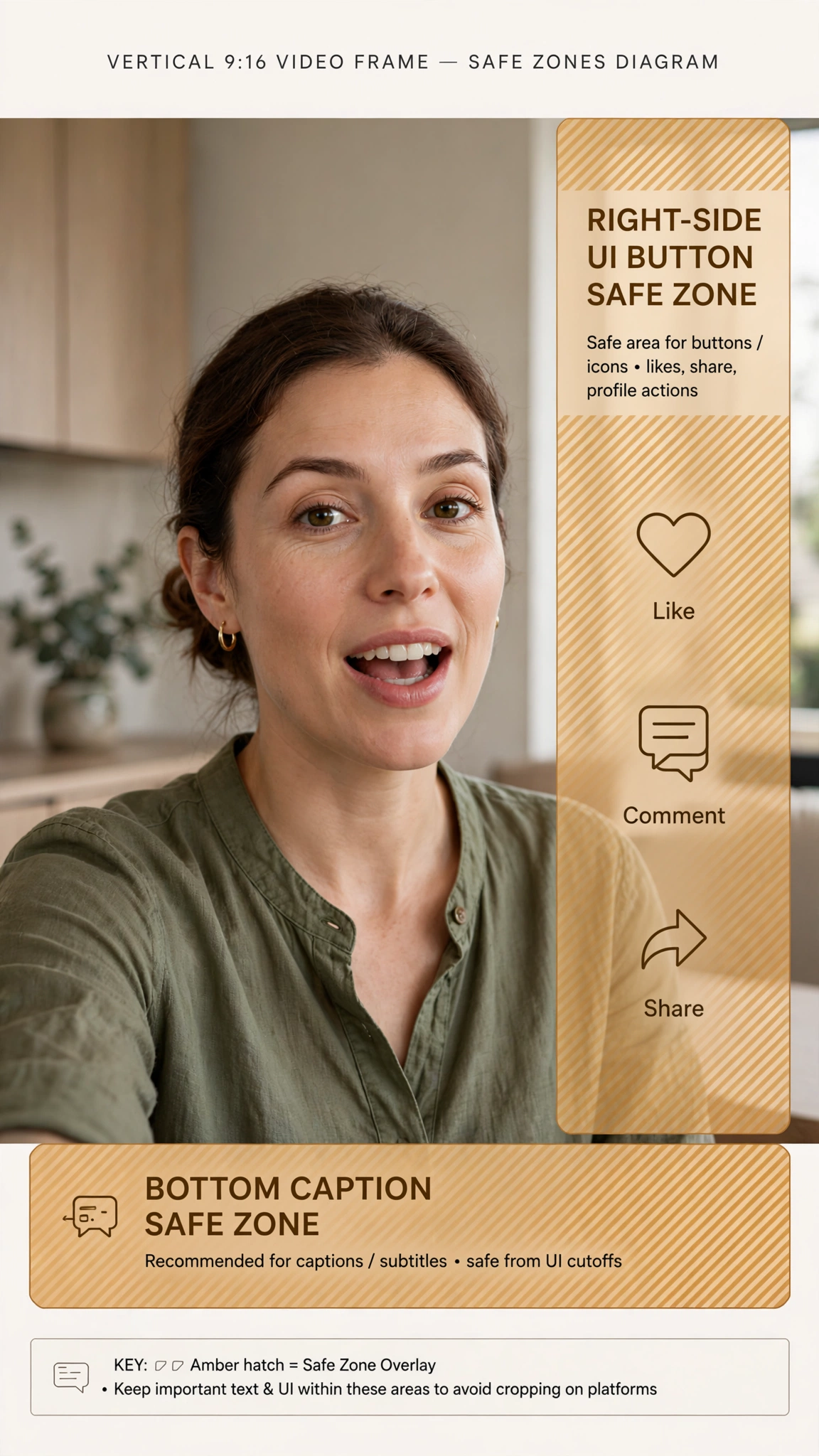
9:16 vertical at 1080×1920. Therefore, set it in the generator before you create the clip — don’t generate 16:9 and crop it.
The Bottom Line
Ultimately, aspect ratio is a choice you make before you generate, not a fix for afterwards. First, pick the platform, set the ratio, then write the prompt for that canvas — vertical means centered subjects and caption space, widescreen means motion across the frame, square means centered balance. As a result, you’ll stop paying for re-renders. Need a second pair of eyes on your prompt? Paste it into Shaheer GPT and ask for a vertical-framing rewrite.