Why You Need AI Tools for Short-Form Video in 2026
Looking for the latest AI video generation news? Here’s the short version: 2026 is the best year yet to create YouTube Shorts and Instagram Reels for free. AI video generation news this year has been dominated by a single story — powerful text-to-video models, auto-editing, and AI captioning dropping to $0, putting studio-quality production in every creator’s pocket.
YouTube Shorts now sees more than 70 billion daily views, and Instagram Reels commands a massive share of daily attention. But producing high-quality short-form video every day used to demand serious time, skill, and money — scripting, shooting, captioning, editing, finding music, and publishing, on repeat.
That’s changed. The best free AI tools for YouTube Shorts and Instagram Reels in 2026 handle everything from automatic captions to turning a typed prompt into a finished clip in seconds — and several can repurpose your long-form videos into Shorts automatically for maximum reach.
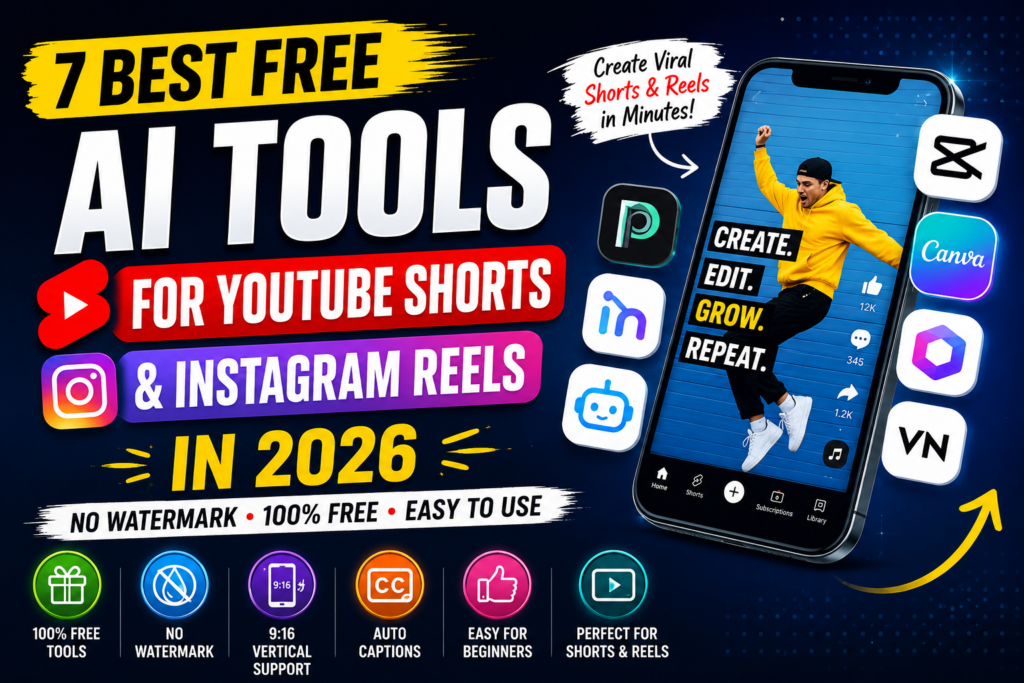
In this guide, I have tested and compared the seven best free AI tools for YouTube Shorts and Reels in 2026 — what each one does, where the free plan limits kick in, and exactly how to use it. Whether you are a complete beginner or an experienced creator, you will find the right free AI video maker for your workflow. Let’s dive in.
Let’s get started.
What to Look for in a Free AI Tool for Reels and Shorts


But before diving deep into the review part, let’s first talk about the requirements that make an excellent free tool for creating AI videos.
Availability of a free trial: The tool should provide enough functions without asking to pay money upfront or share personal data to be able to create something useful. Most so-called “free” video creators try to monetize their apps with premium subscriptions or paid upgrades.
No watermark when exporting videos: This is pretty much self-explanatory. There are lots of platforms where you can upload a video without any watermark.
Ability to create 9:16 videos: YouTube Shorts, Instagram Reels, Tiktok – all of those platforms have videos in the 9:16 format. It’s vital that the app allows you to create videos of this format.
Possibility of generating automatic captions: It was found that 85% of videos watched on social media do not have any sound. This is why generating auto-captions has become one of the most important video features in recent years.
Easy-to-use for beginners: No matter how amazing the functionality of the application is, if it takes 10 YouTube tutorials just to download the video, noone will use it. So intuitive interface and simplicity are crucial.
Video creation for YouTube Shorts and Instagram Reels at once: There is no need to spend extra effort on creating several copies of one video for different platforms.
And here comes the chart for comparing the features of these AI video creators.
Latest AI Video Generation News: What Changed in 2026
If you follow AI video generation news, 2026 has been a landmark year. The biggest shift: text-to-video models that were paid-only experiments last year now ship inside free creator tools. Canva’s integration of Google’s Veo 3 gives free users a monthly allowance of AI-generated clips, and standalone generators keep expanding their no-cost tiers to win creators over.
The second big story in the latest AI video tools 2026 roundup is the captioning wars. Auto-captions with animated, TikTok-style formatting — once a premium feature — are now table stakes in free plans. With the majority of short-form video watched on mute, tools are competing on caption accuracy across languages, including Hindi and Urdu.
Third: repurposing matured. Tools that turn one long video into ten platform-ready Shorts have moved from gimmick to genuinely useful, with AI now picking the most engaging moments instead of random cuts. For creators sitting on a back catalog of long-form content, this is the fastest win in the current AI video generation news cycle.
Text to Video AI Free Tiers: What’s Actually Free in 2026
Free text to video AI in 2026 typically means limited monthly credits — enough to generate B-roll, backgrounds, and establishing shots, but not full videos on autopilot. Use these credits strategically: generate the 2–3 hardest shots to film yourself (aerial views, impossible locations, product close-ups) and edit everything else from real footage. That hybrid approach is what most successful AI-assisted creators actually do.
7 Best Free AI Tools for YouTube Shorts and Instagram Reels (2026)

Below are the seven best options I tested — from a full free AI video maker to specialized clipping and caption tools. Every tool here exports 9:16 vertical video, so anything you create works across YouTube Shorts, Instagram Reels, and TikTok, and most support Hindi and Urdu captions or voiceovers.
1. CapCut — Best Free AI Editor (No Watermark)
If you have raw footage and want powerful editing capabilities without spending a rupee, CapCut is hands-down the best choice available in 2026. Created by ByteDance (the same company behind TikTok), CapCut has evolved from a simple mobile editor into a comprehensive AI-powered video editing platform.
What it is: CapCut is a completely free video editor available on mobile, desktop, and web browsers. The 2026 version includes advanced AI features like auto-captions in 20+ languages, AI background removal, text-to-speech with natural-sounding voices, and AI-powered editing suggestions that analyze your footage and recommend cuts, transitions, and effects.
Free plan details: Here’s what makes CapCut special — unlimited exports with zero watermarks. Yes, you read that correctly. While CapCut Pro exists (starting at $8/month for additional AI features and effects), the free version is genuinely powerful enough for most creators. You get access to thousands of templates, effects, transitions, and the core AI features without paying anything.
Best for: Content creators who film their own footage (talking head videos, vlogs, educational content, product reviews) and need professional editing tools. It’s perfect if you’re comfortable with basic editing concepts but want AI to speed up the tedious parts like captioning and color correction.
Key AI features that matter:
- Auto-captions: Upload your video and CapCut’s AI transcribes speech with impressive accuracy. You can customize font, color, animation style, and positioning. For Urdu and Hindi content creators, the accuracy has improved dramatically in 2026.
- Background removal: Remove video backgrounds without green screen. This AI feature works surprisingly well for product demos and talking head videos.
- AI-powered color correction: One-tap color grading that analyzes your footage and applies professional-looking color adjustments.
- Smart suggestions: The AI watches your footage and suggests where to add transitions, text, or effects based on what’s trending on TikTok and Reels.
How to use CapCut for Shorts:
- Import your raw footage into CapCut (mobile or desktop)
- Use the Auto-caption feature to add subtitles instantly
- Apply trending templates or effects from the library
- Export in 1080×1920 (9:16 format) — no watermark
Limitation to know: CapCut is an editor, not a generator. You still need to provide your own video footage. It won’t create videos from text prompts or automatically generate content. If you don’t have raw video to work with, you’ll need one of the text-to-video tools listed later in this article.
Bottom line: For creators who already shoot video content, CapCut offers the best balance of power, ease of use, and price (free) in 2026. The lack of watermark alone makes it superior to many paid alternatives.
A note on safety: CapCut is owned by ByteDance (TikTok’s parent company), which has faced privacy scrutiny in some countries. As of 2026 it remains available and widely used in most countries including Pakistan, India, and the US. If privacy is a major concern, Canva (Australian-owned) is a solid alternative with similar core features.
2. Canva AI — Best for Beginners (Free Templates + AI Video)
Most people know Canva as the go-to platform for creating social media graphics, but in 2026, Canva has transformed into a legitimate AI video creation powerhouse. If you’re already comfortable with Canva’s interface for designing thumbnails and Instagram posts, adding Shorts and Reels to your workflow feels natural.
What it is: Canva’s AI video maker combines template-based editing with new AI video generation capabilities. You can either customize thousands of pre-made Reels and Shorts templates, or use Canva’s brand-new text-to-video AI (powered by Google’s Veo 3 technology) to generate video clips from written prompts.
Free plan details: Canva’s free tier is surprisingly generous. You get access to thousands of templates, basic stock footage, music tracks, and the ability to create unlimited designs. The 2026 update added limited text-to-video generation credits to free accounts — typically 5-10 AI-generated clips per month depending on your region.
2026 upgrade that changes everything: Canva integrated Google Veo 3, an advanced AI video generator that creates 8-second video clips from text descriptions. Type “golden hour sunset over a city skyline” and watch AI generate smooth, realistic footage. For B-roll, establishing shots, or backgrounds for your Shorts, this is incredibly useful.
Best for: Absolute beginners who have never edited video before, small business owners creating promotional content, and creators who prefer working with templates rather than starting from scratch. If you already use Canva for other design work, this is a natural extension.
Key AI features:
- AI text-to-video: Generate short video clips from text descriptions to use as B-roll or background footage
- Magic Resize: Create content in one size and instantly resize it for different platforms (though for Reels/Shorts, you’ll want to start with 9:16)
- Beat Sync: AI automatically syncs your video cuts and transitions to the beat of your background music
- Brand Kit: Save your colors, fonts, and logos — AI automatically applies your branding to new videos
How to create a Reel in Canva:
- Search for “Instagram Reel” or “YouTube Shorts” in Canva’s template library
- Choose a template that matches your content style
- Customize text, images, and video clips (or generate AI video clips)
- Add background music from Canva’s library
- Export as MP4 video — no watermark on free plan
Limitation to understand: While Canva has improved tremendously, it’s still not as powerful as dedicated video editing software. Complex transitions, advanced color grading, and frame-by-frame editing aren’t Canva’s strength. It excels at template-based content and simple, clean edits — which honestly covers 80% of what most Reels creators need.
Bottom line: If you want the easiest path from idea to published Reel with professional-looking results, Canva AI is your best friend. The learning curve is nearly flat, and the template library means you’re never starting with a blank canvas. As an AI video generator for Reels, its new text-to-video feature is best used for B-roll and backgrounds rather than full videos — generate the establishing shot with AI, then cut your real footage over it.
3. OpusClip — Best for Repurposing Long Videos into Reels
Have a 30-minute YouTube video or podcast episode sitting on your channel? OpusClip’s AI can transform that single long-form video into 10-15 viral-ready Shorts automatically. This is repurposing on steroids.
What it is: OpusClip uses advanced AI to analyze your long-form videos, identify the most engaging moments, and automatically clip them into short-form content optimized for Reels and Shorts. But here’s where it gets interesting — it assigns each clip a “virality score” based on factors like pacing, hook strength, and content structure.
Free plan details: OpusClip offers a limited free tier that lets you process a certain amount of video minutes per month (usually around 60 minutes). This is enough to experiment and see results, but heavy users will eventually need a paid plan. The free tier does include a small watermark, which you can remove by upgrading.
The killer feature: OpusClip’s auto-captions are exceptionally good. They’re not just accurate — the AI formats them in the punchy, attention-grabbing style that actually performs well on social media. Short sentences. Strategic pauses. Emphasis on key words. It even suggests where to add text overlays based on detecting silence gaps in your audio, which creates natural visual breathing room.
Best for: Podcasters, educators, coaches, interview-based channels, and anyone creating long-form content who wants to maximize reach by creating Shorts from existing videos. If you’re already making 15-20 minute YouTube videos, OpusClip can multiply your content output without creating anything new.
How OpusClip’s AI works:
- Upload a YouTube URL or video file
- AI analyzes the content for topic changes, emotional peaks, and audience retention patterns
- Automatically generates 10-15 clips, each with captions, framing, and a virality score
- You review the clips, pick your favorites, and download or publish directly
Limitation to consider: OpusClip works best with talking-head content, interviews, podcasts, and educational videos. If your long-form content is highly visual, fast-paced, or relies on seeing full-screen elements, the AI may struggle to create coherent clips. Also, the free tier’s watermark is fairly prominent.
Bottom line: For educational content and talking-head videos, OpusClip reduces post-production time by about 80%. If you’re already creating long-form content, this tool pays for itself immediately in time saved. The virality scoring system is surprisingly accurate and takes the guesswork out of which clips to post.
4. InVideo AI — Best Text-to-Video Tool (Free Tier)
What if you could type a script and have AI automatically convert it into a complete video with relevant footage, voiceover, captions, and music? That’s exactly what InVideo AI does, and it’s remarkably good at it.
What it is: InVideo AI is a text-to-video platform designed specifically for beginners. You write a script or even just describe what you want, and the AI assembles a complete video using stock footage, AI-generated voiceover, background music, and animated text overlays. Think of it as having a video editor who works instantly and never asks questions.
Free plan details: InVideo offers 4 video exports per month on the free plan, and these exports include a watermark. It’s enough to test the platform and create occasional content, but serious creators will likely need the paid plan to remove watermarks and get unlimited exports.
Best for: Creators who want to make videos from scripts or ideas without filming anything themselves. This is perfect for faceless YouTube channels, educational content, listicle-style videos, motivational content, or fact-based Shorts where you don’t need to appear on camera.
Key features that matter:
- Script-to-video AI: Paste your script and choose a style (modern, minimal, bold, etc.) — AI handles everything else
- Massive stock library: Access to millions of stock video clips and images from Storyblocks
- AI voiceover: Choose from 40+ natural-sounding AI voices in multiple languages including Urdu, Hindi, and English
- Templates for every niche: Pre-built templates for YouTube Shorts, Instagram Reels, product demos, testimonials, quotes, and more
How to create a Short with InVideo AI:
- Choose a template or start with the AI script-to-video workflow
- Enter your script or prompt (example: “Create a 30-second motivational video about morning routines”)
- AI generates the video with relevant footage, voiceover, and music
- Customize colors, fonts, and footage if needed
- Export in 9:16 format (watermark included on free plan)
Limitation to know: The watermark on free exports is significant, and 4 videos per month is limiting if you post daily. Also, because InVideo pulls from stock footage libraries, your videos may sometimes feel generic if you don’t customize the footage selections. The platform works best when you take a few extra minutes to swap out generic clips for more specific ones.
Bottom line: If you have ideas and scripts but no footage, InVideo AI is the fastest path to published content. The 4-video monthly limit on the free plan makes this more of a “test and see” option before upgrading, but the quality of AI-generated videos is genuinely impressive for 2026.
5. Submagic — Best AI Caption Tool for Reels
Here’s a hard truth about short-form video in 2026: captions aren’t optional anymore. They’re the difference between someone scrolling past in 0.5 seconds or watching your entire Reel. Submagic specializes in one thing — making your captions absolutely perfect — and it does that one thing better than any other tool.
What it is: Submagic is an AI-powered captioning tool built specifically for short-form vertical video. Upload your Reel or Short, and Submagic’s AI transcribes every word, formats it in attention-grabbing styles (think Alex Hormozi or MrBeast-style captions), and even highlights key words for emphasis.
Free plan details: Submagic offers a limited free tier that lets you create a few captioned videos to test the platform. The free version includes basic caption styles. Premium features like custom fonts, animated emoji auto-insert, and brand-specific caption templates require a paid subscription.
Best for: Creators who already have their video content but struggle with adding professional-looking captions. If adding subtitles is the bottleneck in your workflow (and for most creators, it absolutely is), Submagic removes that friction entirely.
What makes Submagic different:
- Accuracy: The AI transcription in 2026 is near-perfect for clear English audio, and very good for accented English, Hindi, and Urdu
- Styling: Captions aren’t just text on screen — they’re animated, highlighted, and formatted to grab attention
- Keyword emphasis: AI automatically bolds or highlights important words to guide viewer attention
- Emoji insertion: AI suggests relevant emojis based on your content and inserts them at natural points
- Speed: A 60-second video gets fully captioned in about 15 seconds
Limitation to consider: Submagic is specialized. It does captions incredibly well but doesn’t handle other editing tasks. You’ll still need a video editor like CapCut or Canva for cuts, transitions, and effects. Think of Submagic as a specialized tool that perfects one crucial element.
Bottom line: For creators serious about short-form content, Submagic is worth every penny. The free tier lets you test it, but this is one tool where upgrading to paid makes sense if you post regularly. Your captions will look better, save time, and most importantly, keep viewers watching longer.
6. FlowShorts — Best for Faceless AI YouTube Shorts
FlowShorts represents the complete automation dream — type a topic, and the AI generates an entire YouTube Short from scratch, including script, voiceover, visuals, captions, and can even auto-post to your channel. If you’re running a faceless YouTube channel, this is the tool you’ve been waiting for.
What it is: FlowShorts is an end-to-end AI video generator designed specifically for YouTube Shorts, TikTok, and Instagram Reels. You provide a topic or simple prompt (example: “Top 5 unknown facts about space”), and FlowShorts’ AI handles scriptwriting, generates AI voiceover, selects or creates relevant visuals, adds captions, and outputs a finished Short ready to upload.
Free plan details: FlowShorts offers a free tier that lets you generate a limited number of Shorts per month to test the platform. One of the best features — no watermark even on the free plan. This puts it in the same category as CapCut and Canva for watermark-free exports.
Best for: Faceless channel creators, busy entrepreneurs who want content but don’t have time to create it, niche educational channels (history facts, tech tips, science, motivation), and anyone who wants to maintain consistent posting without appearing on camera.
The complete workflow FlowShorts handles:
- Scriptwriting: AI researches your topic and writes an engaging script optimized for retention
- Voiceover generation: Natural-sounding AI voice reads the script (you can choose voice style and language)
- Visual generation: AI either generates images/video clips or selects relevant stock footage
- Caption creation: Auto-captions synced perfectly to the voiceover
- Auto-posting: Connect your YouTube, TikTok, and Instagram accounts — AI posts automatically on your schedule
Limitation to understand: Because FlowShorts automates everything, you sacrifice creative control. The AI makes all decisions about pacing, visual style, and tone. If you’re a hands-on creator who wants precise control over every frame, this might feel limiting. However, if your goal is consistent content output without manual work, that’s exactly what FlowShorts delivers.
Bottom line: FlowShorts is perfect for creators who prioritize quantity and consistency over complete creative control. For faceless channels, educational content, or supplementary content to maintain posting frequency, it’s extraordinarily effective. The fact that it’s watermark-free even on the free plan makes it worth testing immediately. As a dedicated AI shorts generator, it trades creative control for raw speed — ideal when your goal is maximum output.
7. Lumen5 — Best for Turning Blog Posts into Reels
If you’re a blogger or content writer, you’re sitting on a goldmine of content that could become viral Reels and Shorts — you just need the right tool to transform written content into video. Lumen5 specializes exactly in this: converting blog posts and articles into engaging short-form videos.
What it is: Lumen5 is an AI-powered platform that converts text content (blog posts, articles, scripts) into video format automatically. Paste in your blog URL or copy your article text, and Lumen5’s AI summarizes key points, selects relevant stock footage, adds text overlays, and creates a video that tells the same story visually.
Free plan details: Lumen5 offers a basic free tier with 720p video exports (which is fine for social media) and access to their stock library. Premium features like 1080p export, custom branding, and expanded stock footage require a paid plan. The free tier includes a Lumen5 watermark.
Best for: Bloggers who want to repurpose written content into video, businesses with lots of written content (case studies, how-to guides, product descriptions), and content marketers who need to maximize the ROI of existing content.
Key AI features:
- Automatic text summarization: AI reads your blog post and identifies the key points worth highlighting in video format
- Smart media matching: AI selects stock footage and images that match your content contextually
- Music mood detection: AI analyzes your content tone and suggests background music that fits
- One-click formatting: Instantly format any video for Instagram Reels, YouTube Shorts, or other social platforms
How to turn a blog post into a Reel with Lumen5:
- Paste your blog URL or copy article text into Lumen5
- AI analyzes content and creates a storyboard with key points
- Review the AI-selected footage and make any adjustments
- Choose music, adjust timing, and customize branding
- Export in 9:16 format for Reels/Shorts
Limitation to know: Lumen5 works best with structured, informational content. Creative writing, personal stories, or content without clear key points may not translate as well. Also, the AI-selected footage sometimes feels generic and requires manual replacement with more specific clips.
Bottom line: If you’re already creating written content, Lumen5 offers one of the highest ROI opportunities — repurpose existing work into a completely different format that reaches a different audience. The free tier is worth testing to see if the AI’s content summarization matches your style.
Quick Comparison Table — All 7 Tools at a Glance
Here’s a comprehensive comparison table to help you make a quick decision based on your specific needs:
| Tool | Free Plan | Watermark | Best For | Platforms |
|---|---|---|---|---|
| CapCut | Unlimited | None | Editing raw footage | Reels + Shorts |
| Canva AI | Limited AI credits | None | Templates + beginners | Both |
| OpusClip | 60 min/month | Yes | Repurposing long videos | Both |
| InVideo AI | 4 exports/month | Yes | Text-to-video | Both |
| Submagic | Limited exports | None | Professional captions | Both |
| FlowShorts | Available | None | Faceless channels | Both |
| Lumen5 | Basic tier | Yes | Blog-to-video | Both |
Quick tip: This comparison table is designed to help Google understand your content structure and potentially feature it as a rich snippet in search results. Tables like this significantly increase your chances of appearing in “People Also Ask” sections.
How to Pick the Right AI Tool for Your Content Style
Choosing between seven different tools can feel overwhelming, so let me simplify this for you based on your specific situation and content creation style. Here’s exactly which tool you should start with:
“I have raw footage”:
If you’re already filming yourself — talking head videos, vlogs, tutorials, product reviews — then CapCut is your answer. You have the content; you just need professional editing tools that don’t slow you down. CapCut’s AI features will handle captions, color correction, and suggest trending effects while you maintain complete creative control. Plus, unlimited exports with no watermark means you can post daily without restrictions.
“I want to create videos from scripts”:
If you have ideas and can write scripts but don’t want to film yourself, choose between InVideo AI or FlowShorts. InVideo AI gives you more control over the visual style and lets you customize heavily. FlowShorts is faster and more automated — better if you want to post consistently without hands-on editing. For faceless educational channels, FlowShorts is perfect. For more creative control, go with InVideo AI.
“I have long videos to clip”:
If you’re already creating podcasts, interviews, or long YouTube videos and want to maximize that content’s reach, OpusClip is the only tool you need. Nothing else comes close to its ability to identify viral moments and generate multiple Shorts from one long video. The virality scoring system alone makes it worth testing. Just be prepared for the watermark on the free tier.
“I just want templates and easy design”:
If you’re a beginner, don’t like complicated editing software, and want to create good-looking content quickly using templates, Canva AI is your perfect match. If you already use Canva for thumbnails and graphics, adding Reels to your workflow takes minutes to learn. The template library is massive, and the interface is the most beginner-friendly option on this list.
The ultimate recommendation for beginners: If you’re just starting out and aren’t sure which direction to go, begin with CapCut + Canva together. Both are free with no watermarks. CapCut handles any footage-based editing you need, while Canva covers template-based content and graphics. This combination covers 90% of what most creators need, costs zero rupees, and you can learn both platforms in a weekend.
For established creators looking to scale: Add OpusClip to repurpose existing content and Submagic to perfect your captions. This four-tool combination (CapCut + Canva + OpusClip + Submagic) can 10x your content output while actually reducing the time you spend editing.
AI Video Editing Tools vs AI Shorts Generators: Pick Your Lane
Here’s the simplest way to choose: if you film your own footage, you need AI video editing tools like CapCut that speed up editing, captions, and effects. If you don’t want to film at all, you need an AI shorts generator like FlowShorts or InVideo AI that creates videos from text. Most successful creators eventually use one of each — an editor for their main content and a generator for filler, B-roll, and experiments.
Pro Tips to Make Your AI-Generated Shorts Go Viral in 2026
Having the right tools is only half the battle. Here are proven strategies to make sure your AI-created content actually performs well and reaches your target audience:
The 1.5-second rule: The average person scrolling through Reels or Shorts makes a decision to keep watching or scroll past in under 1.5 seconds. Your opening frame and first few words must immediately create curiosity, promise value, or trigger emotion. Start with the hook, not the introduction.
Captions are non-negotiable: Over 85% of social media video is watched without sound. If your content requires audio to make sense, you’re immediately losing the majority of your potential audience. Every video needs captions.
Post frequency matters more than perfection: Posting 3-7 short-form videos per week leads to consistent growth. The algorithm rewards consistent creators. This is exactly why AI tools matter — they let you maintain that frequency without burning out.
The content pattern that works: Successful short-form creators typically follow a 70-20-10 content distribution:
- 70% educational/valuable content that teaches something specific
- 20% entertaining/relatable content that makes people laugh or feel understood
- 10% promotional content about your products, services, or channel
Use AI to script your hooks: Even if you’re writing your own scripts, use ChatGPT or Claude to generate 10 different hook options for each video. Test which styles get the best retention.
Analyze what works, then create more of it: Every platform gives you analytics. Check which of your Shorts/Reels got the best watch time percentage (not just views). Look for patterns and create variations on winners.
You’ve seen the seven best tools — now let’s assemble them into a complete workflow. Here’s the full stack of tool categories you need, a few supporting tools worth knowing, and the exact $0 process that ties everything together.
The Complete Free AI Tools for YouTube Shorts Stack
Not all free AI tools for YouTube Shorts serve the same purpose. You need tools across six categories: editing, clipping, captions, scripting, voiceover, and thumbnails:
| Tool | Best For | Free Plan | Platform |
|---|---|---|---|
| CapCut | Full editing + auto-captions | Generous free tier; core editor and captions free | Web, iOS, Android, Desktop |
| Opus Clip | Turning long videos into Shorts | Typically limited free credits per month | Web |
| Descript | Text-based video editing | Free plan with limited transcription hours | Web, Desktop |
| Pictory | Text-to-video Shorts | Free trial with limited video minutes | Web |
| ElevenLabs | AI voiceovers | Free tier with monthly character limits | Web |
| Canva | Thumbnails and graphics | Free plan covers most design needs | Web, iOS, Android |
Best Free AI Video Editors for Shorts
Descript — Edit Video Like a Document
Descript transcribes your video, and you edit by deleting words from the transcript. For talking-head Shorts, this is dramatically faster than timeline editing. For quick browser-based edits, you can also use our free video editor right here on ShaheerTools with no signup.
Best Free AI Caption Generators
Captions are non-negotiable: a large share of viewers watch Shorts with sound off. The best free AI tools for YouTube Shorts in the caption category include CapCut auto-captions (free, accurate, styled for short-form), YouTube’s built-in captions (backup option), and Descript’s transcription-based captions. If you need help writing caption text, try our free caption writer.
Best Free AI Script Writers for Shorts
The highest-performing Shorts follow tight scripts — hooks in the first 2 seconds, one idea per video, and a clear payoff. Use ChatGPT or Claude (free tiers) with prompts like “a 30-second YouTube Short script about [topic] with a hook in the first line, under 75 words.” Need help brainstorming? Our AI video prompts guide has copy-paste prompts for Shorts scripts, hooks, and viral formats. Pro tip: never publish an AI script verbatim — read it aloud and add one personal detail.
The $0 Workflow: Make a Short in 15 Minutes
This workflow uses only free AI tools for YouTube Shorts and takes roughly 15 minutes per video:
- Script (3 min): Prompt ChatGPT: “Write a 30-second YouTube Short script about [your topic]. Start with a bold hook, keep it under 75 words, end with a question.” Read aloud and fix anything stiff.
- Record (4 min): Film on your phone in 1080×1920. Face a window for good lighting. Record 2-3 takes.
- Edit (4 min): Drop the clip into CapCut. Trim dead air, add auto-captions with an animated style, cut filler words.
- Polish (2 min): Add a 1-second hook text overlay on frame one. Check every caption word. Export at 1080×1920, 30fps.
- Publish (2 min): Upload with a keyword-rich title, 2-3 hashtags, and a pinned comment asking a question.
Repurposing shortcut: run long-form videos through Opus Clip’s free credits to auto-generate captioned Shorts, then polish in CapCut. For fully AI-generated Shorts, explore an AI video generator.
Frequently Asked Questions (FAQ)
Which is the best free AI tool for YouTube Shorts without watermark?
Three tools offer completely watermark-free exports on their free plans in 2026: CapCut, Canva, and FlowShorts. CapCut is best if you have raw footage to edit, Canva is best for template-based content and beginners, and FlowShorts is best for completely automated faceless Shorts.
Can I use AI-generated Shorts to earn money on YouTube?
Yes, YouTube allows monetization of AI-assisted content as long as it provides genuine value to viewers and follows YouTube’s content policies. You must disclose AI-generated content when required. Educational content, commentary, and heavily edited AI-assisted videos generally monetize without issues.
Are free AI tools for YouTube Shorts really enough to grow a channel?
Yes — for production quality, the free tiers are enough. Growth depends far more on consistency, hooks, and niche selection than on paid tools. Many 100K+ subscriber channels were built entirely on CapCut’s free plan.
Which AI tool is best for beginners with no video editing experience?
Canva AI and InVideo AI are the two most beginner-friendly options. Canva AI wins if you prefer working with templates and visual drag-and-drop editing. InVideo AI wins if you want to simply type what you want and have AI create it.
What’s the difference between free and paid plans for these tools?
Free plans typically include limitations like: limited exports per month, watermarks, restricted access to premium templates and effects, and limited AI generation credits. Paid plans remove these restrictions and add premium features. For beginners and casual creators, free plans are genuinely usable.
What’s the ideal length for a YouTube Short in 2026?
25-40 seconds tends to maximize completion rate, which is the metric the Shorts algorithm weighs most heavily. Say one thing, say it fast.
Conclusion: AI Video Generation News Moves Fast — Start Creating Now
We’ve covered a lot of ground in this guide, so let’s bring it all together with clear next steps.
The best free AI tools for YouTube Shorts and Instagram Reels in 2026 have genuinely transformed what’s possible for solo creators and small teams — and if you follow AI video generation news, you know the pace of change is only accelerating. What used to take an entire day of editing now takes minutes.
Here’s my recommendation based on testing all seven tools extensively:
For most creators, start with the CapCut + Canva AI combination. Both are free, watermark-free, and cover the vast majority of what you’ll need. CapCut handles any footage-based editing with professional results, while Canva gives you beautiful templates and AI video generation for quick content.
If you create long-form content, add OpusClip to automatically repurpose it into Shorts — the time savings here are absolutely worth it, even with the watermark on the free plan.
If you’re running a faceless channel or want complete automation, test FlowShorts — the ability to go from topic to published Short in under 5 minutes is remarkable.
Your action plan for today:
- Pick ONE tool from this list based on your content type
- Create your first AI-assisted Short or Reel today — don’t wait for perfection
- Post it and watch the analytics
- Adjust based on what you learn, then create another one tomorrow
Remember, the algorithm rewards consistency over perfection. Better to post three “good enough” Shorts this week than spend the whole week trying to create one perfect video. These AI tools exist specifically to help you maintain that consistency without burning out.
Now stop reading and go create your first AI-powered Short. Your audience is waiting.