Short answer: If you’re wondering how can I reduce picture file size for free, the fastest way is an online image compressor: upload your photo, pick JPEG or WebP output, set quality around 80%, and download — a 3 MB photo typically shrinks to under 300 KB with no visible difference. The free image compressor does this entirely in your browser, so your photos never leave your device.
Large picture files slow down websites, eat phone storage, bounce back from email attachments, and fail upload limits. This guide shows five free ways to reduce picture file size, starting with the one-minute method.
Why Are Picture Files So Big?
Modern phone cameras capture 12–48 megapixels, saving every detail as data. A single photo can be 3–8 MB. For screen viewing, most of that data is invisible — a 1920px-wide image looks identical to a 4000px one on a phone or laptop. Compression removes the redundant data your eyes can’t see.
Method 1: Use a Free Online Image Compressor (Fastest)


This is the one-minute fix:
- Open the free image compressor — no signup, no app.
- Drop your image into the upload box (or click to choose a file). JPG, PNG, WebP, and GIF all work.
- Pick an output format: JPEG for photos, WebP for the smallest web files, PNG only when you need lossless quality.
- Drag the quality slider — 80% is a great default for photos. The tool shows the compressed size live as you drag.
- Compare the original vs. compressed size and the percentage saved, then download with one click.
Unlike most online compressors, this one processes everything inside your browser — your photos are never uploaded to a server. No queues, no file-count limits, no watermark.
Concrete Example
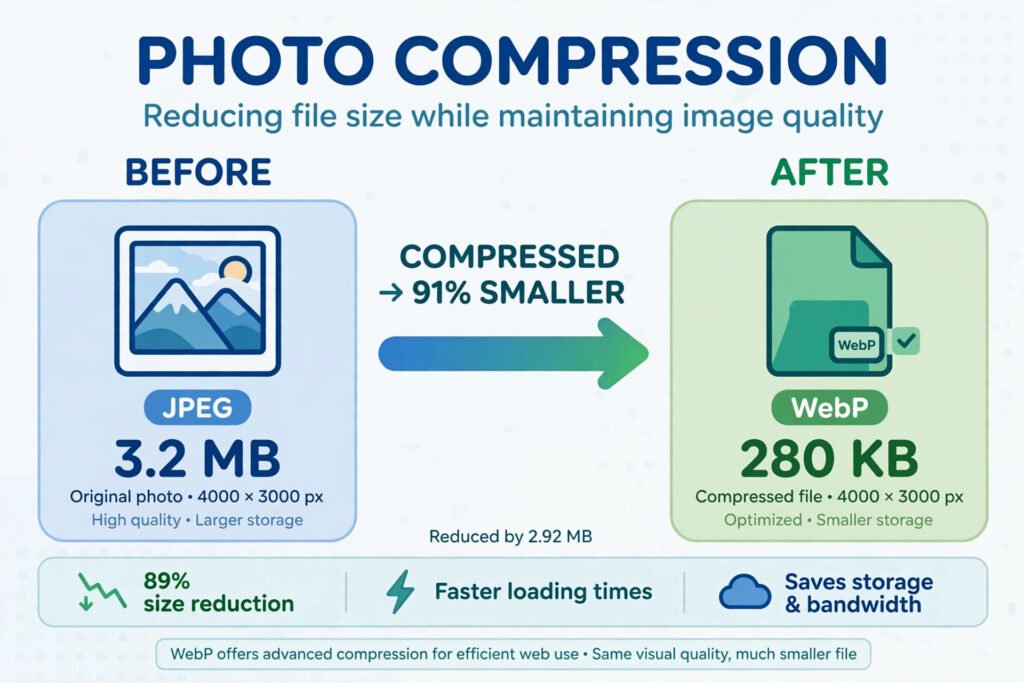
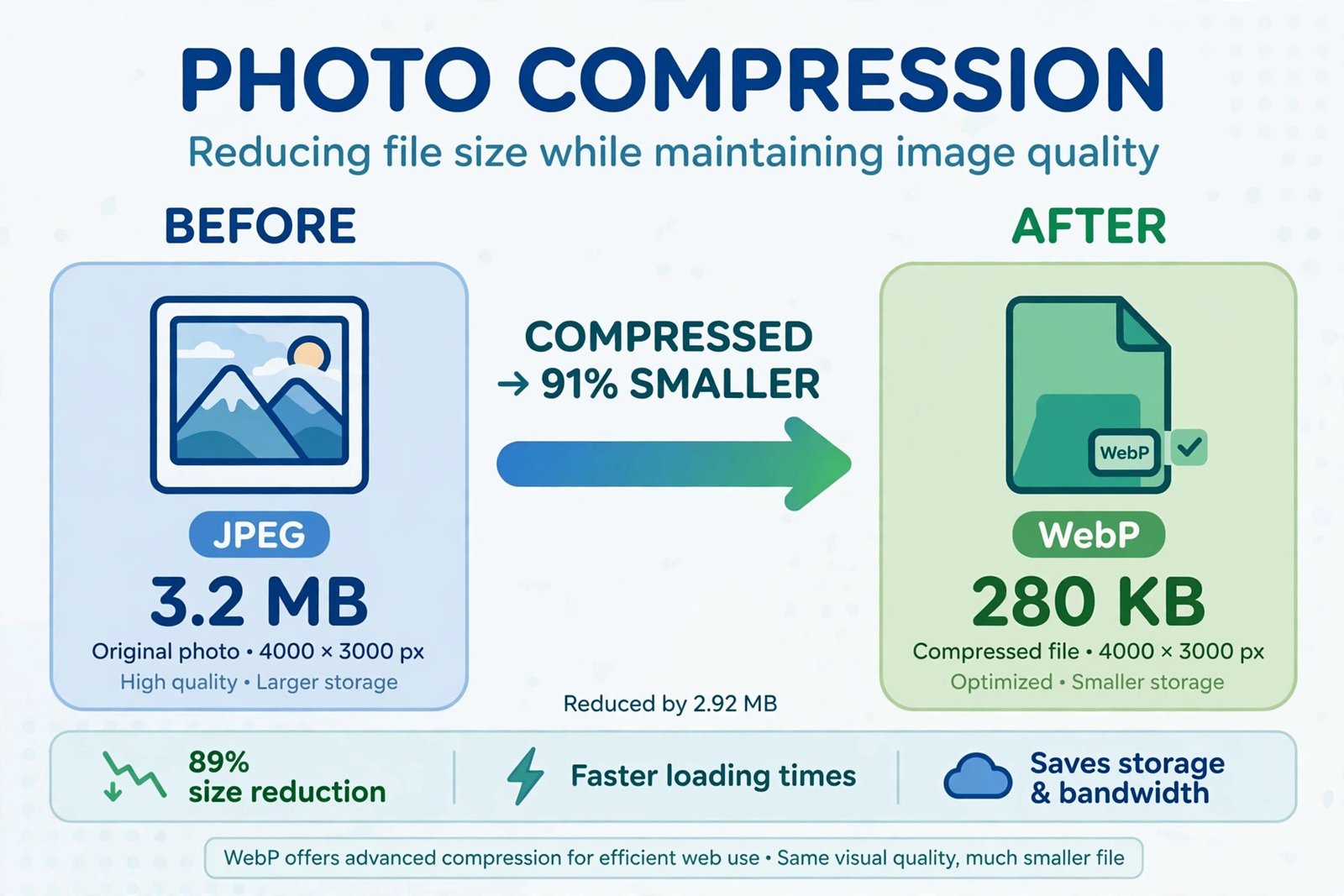
A typical phone photo: 4032 × 3024 px JPEG at 3.2 MB.
- Compress at 80% quality → ~280 KB (91% smaller)
- Convert to WebP at 80% → ~190 KB (94% smaller)
Side by side on a screen, the compressed versions are visually identical. That’s the whole trick — you’re deleting data nobody can see.
Method 2: Choose the Right Format

Format choice alone can halve a file:
| Format | Best for | Typical size | Notes |
|---|---|---|---|
| JPEG | Photos | Small | Universal support; lossy but efficient |
| WebP | Web photos | Smallest | ~25–35% smaller than JPEG; supported by all modern browsers |
| PNG | Graphics, screenshots, transparency | Large | Lossless — only use when you need transparency or pixel-perfect edges |
| GIF | Simple animations | Medium | Fine for memes; use video formats for longer clips |
Rule: photos → JPEG or WebP. Screenshots with text → PNG (or WebP). Never save a photo as PNG unless you need transparency — it’ll be 3–5x bigger than JPEG for no visible gain.
Method 3: Resize the Dimensions
A 4000px-wide photo displayed at 800px wastes 96% of its pixels. Before compressing, shrink oversized images to the size they’ll actually be shown:
- Web/blog images: 1200–1920 px wide is plenty
- Social media: 1080 px wide matches most platforms
- Email attachments: 1024 px wide keeps files emailable
Resizing first means the compressor has less data to work with, so quality stays higher at the same file size.
Method 4: Tune the Quality Slider
The quality slider (10–95%) is the main lever:
- 90–95%: near-original quality, modest savings — use for prints
- 80%: the sweet spot for photos — big savings, no visible loss
- 60–70%: aggressive — fine for thumbnails and previews
- Below 50%: visible artifacts — avoid for anything important
Drag it while watching the live size readout and stop when the preview still looks clean.
Method 5: Strip Metadata (Bonus)
Photos carry EXIF metadata — camera model, GPS location, timestamps — adding 10–100 KB. Many compressors strip it automatically during re-encoding. (Bonus privacy win: stripped GPS data can’t leak your location when you share the photo.)
When Reducing Picture File Size Matters Most
- Website speed: oversized images are the #1 reason pages load slowly — and slow pages rank worse and convert worse. Compressing every upload is the highest-ROI speed fix most sites can make.
- Phone storage: a thousand 4 MB photos eat 4 GB. Compressed at 300 KB each, the same thousand take 300 MB.
- Email and forms: attachments often cap at 10–25 MB, and upload forms reject oversized files outright.
- Messaging apps: some compress anyway, but starting small keeps quality under your control.
Tips for the Smallest Files Without Quality Loss
- WebP first: if your use case allows it, WebP beats JPEG at every quality level.
- Resize before compressing, not after.
- Don’t re-compress a JPEG repeatedly — each save loses quality. Always compress from the original.
- 80% quality is the default that works for nearly all photos.
- Check the savings readout before downloading — if you only saved 5%, try a lower quality or WebP.
Frequently Asked Questions
Upload your photo to a free online image compressor, choose JPEG or WebP output, set quality around 80%, and download. A 3 MB photo typically drops under 300 KB with no visible quality loss.
Re-compress it at lower quality (80% is ideal) or convert it to WebP. An online compressor does both in seconds without installing software.
At sensible settings (JPEG/WebP at 75–85%), the difference is invisible on screens. Quality loss only becomes noticeable below ~60%.
WebP gives the smallest files for photos — typically 25–35% smaller than JPEG at the same visual quality. Use JPEG for maximum compatibility.
Yes. A browser-based compressor processes your photos locally on your device — nothing is sent to any server, so it’s fully private.
Resize to ~1024 px wide, compress as JPEG at 75–80% quality. Most photos land well under the 10–25 MB attachment limits this way.
Related guides
- Shrink any photo in seconds with the free image compressor — JPEG, WebP, PNG and GIF, fully private, unlimited.
- Dealing with iPhone photos? Learn why iPhones use HEIC and how to convert HEIC to JPG before you compress.
- Need to shrink documents too? See how to reduce PDF file size without losing quality.