Short answer: To change file permissions in Linux, use the chmod command followed by an octal value and the filename — for example, chmod 755 script.sh. To build the right value without memorizing anything, use the free chmod calculator: tick the permissions you want and copy the generated command.
If you’ve ever deployed a website, run a script on a server, or followed a tutorial that said “just run chmod 755” without explaining what it means, this guide is for you. Learning how to change file permissions in Linux the right way covers: what permissions are, how chmod works, which values to use when, and how to generate the exact command in seconds.
What Are Linux File Permissions?
Every file and directory on Linux has permissions controlling who can read, write, or execute it. There are three user classes:
- Owner (u): the user who owns the file
- Group (g): users in the file’s group
- Others (o): everyone else
And three permission types:
- Read (r): view the file’s contents (or list a directory)
- Write (w): modify the file (or create/delete files in a directory)
- Execute (x): run the file as a program (or enter a directory)
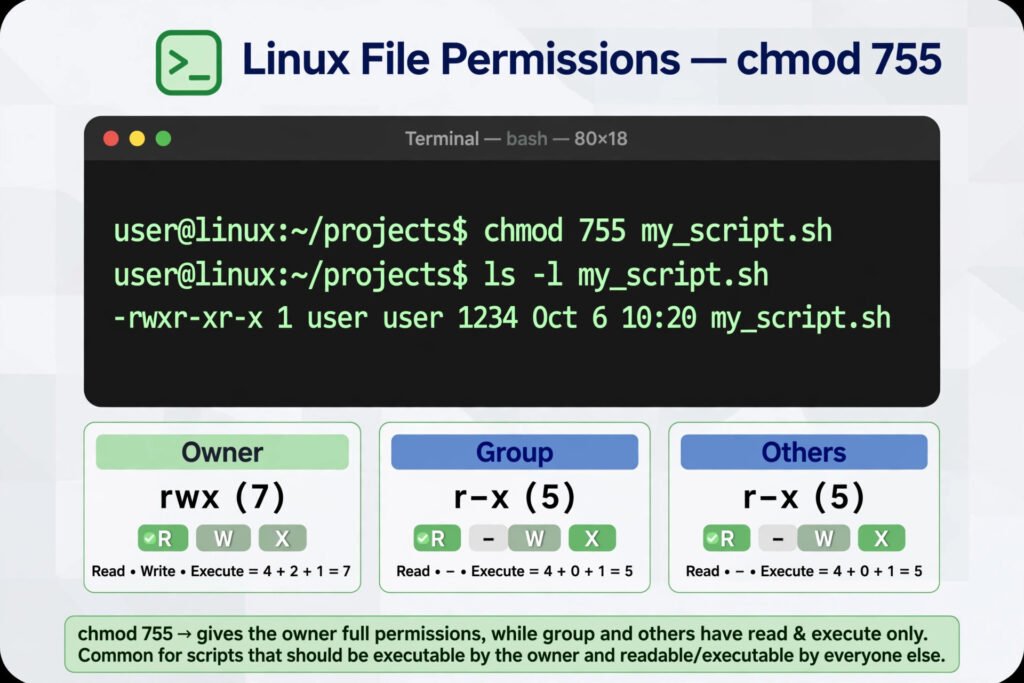
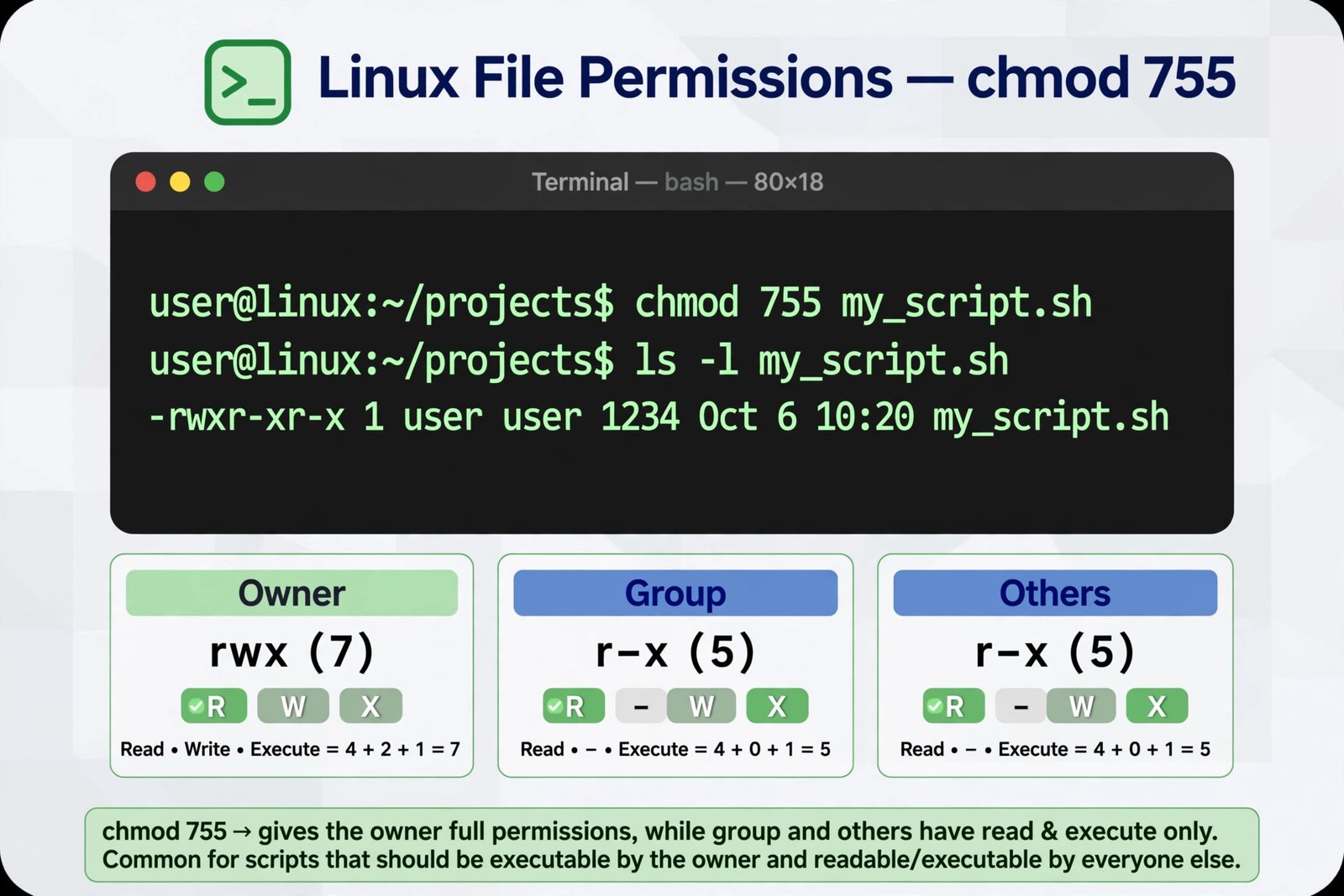
When you run ls -l, you see these as a symbolic string like -rwxr-xr-x: the first character is the file type, then three triplets for owner, group, and others.
The chmod Command: Syntax


chmod [options] MODE FILEMODE can be written two ways:
- Octal (numeric): three digits like
755— compact, most common in tutorials - Symbolic: letters like
u+x— more readable, good for small tweaks
This guide focuses on octal mode since that’s what you’ll encounter most, but covers symbolic too.
How Octal Permissions Work
Each permission has a number: read = 4, write = 2, execute = 1. Add the permissions you want for one digit, repeat for all three classes:
- 7 = 4+2+1 = read + write + execute (
rwx) - 6 = 4+2 = read + write (
rw-) - 5 = 4+1 = read + execute (
r-x) - 4 = read only (
r--) - 0 = no permissions (
---)
So 755 means: owner gets 7 (rwx), group gets 5 (r-x), others get 5 (r-x) → rwxr-xr-x.
How to Change File Permissions in Linux: Step by Step

Method 1: Generate the command with the free calculator (easiest)
- Open the free chmod calculator.
- For each group (owner, group, others), tick the read, write, and execute checkboxes you want. Hover any checkbox for a plain-English explanation.
- Watch the octal value, symbolic value, and ready-to-paste
chmodcommand update live. - Click to copy the command (e.g.,
chmod 755 <file>), replace<file>with your filename, and paste it into your terminal.
There’s also reverse lookup: paste an octal value from a tutorial (like 644) to see exactly which permissions it grants — plus one-click presets for 755, 644, 700, 600, and 777.
Method 2: Type the chmod command directly
Once you know the value, changing permissions is one command:
chmod 755 myscript.shVerify with:
ls -l myscript.sh
# -rwxr-xr-x 1 user user ... myscript.sh
Changing permissions recursively
To change a directory and everything inside it, add -R:
chmod -R 755 /var/www/myappUse -R carefully — it touches every file and subdirectory. Double-check the path before pressing Enter.
Symbolic mode for quick tweaks
To add or remove a single permission without recalculating octal:
chmod u+x script.sh      # give the owner execute permission
chmod go-w notes.txt     # remove write permission from group and others
chmod a+r public.txt     # give everyone read permission
Common chmod Values: Which One to Use
| Octal | Symbolic | Meaning | Typical use |
|---|---|---|---|
| 755 | rwxr-xr-x | Owner: full; rest: read + execute | Scripts, directories, web app folders |
| 644 | rw-r–r– | Owner: read/write; rest: read | Regular files, HTML/CSS, images |
| 700 | rwx—— | Owner only: full access | SSH private keys (~/.ssh), personal scripts |
| 600 | rw——- | Owner only: read/write | Sensitive files (passwords, private keys) |
| 777 | rwxrwxrwx | Everyone: full access | Avoid — see warning below |
| 750 | rwxr-x— | Owner: full; group: read/execute | Shared project directories |
Rules of thumb: files → 644; executable scripts and directories → 755; secrets → 600 or 700.
The 777 Warning
chmod 777 gives everyone read, write, and execute access. Tutorials sometimes suggest it as a “quick fix” for permission errors — don’t. Any user on the system could modify or replace your files. If a web app “needs” 777 to work, the real fix is correcting ownership with chown, not opening permissions to the world:
sudo chown -R www-data:www-data /var/www/myapp
chmod -R 755 /var/www/myapp
Real-World Examples
Make a script executable:
chmod 755 deploy.sh
./deploy.sh
Lock down an SSH key (SSH refuses keys that are too open):
chmod 600 ~/.ssh/id_rsaFix a WordPress uploads folder:
chmod 755 wp-content/uploadsRemove public write access after a mistake:
chmod -R o-w /var/www/myappFrequently Asked Questions
Use the chmod command: chmod 755 filename sets common permissions. Build the exact value with a free chmod calculator by ticking the permissions you want, then copy the generated command.
755 gives the owner full permissions (read, write, execute = 7) and gives group and others read + execute (5 each). Symbolically: rwxr-xr-x. It’s the standard for scripts and directories.
644 gives the owner read + write (6) and everyone else read-only (4). Symbolically: rw-r–r–. It’s the standard for regular files like documents and web assets.
Add the -R (recursive) flag: chmod -R 755 foldername. This applies the permissions to the directory and all its contents.
777 grants read, write, and execute to every user on the system, so anyone could modify or delete your files. Use 755/644 instead and fix ownership with chown when needed.
Run ls -l filename. The first column shows the symbolic permissions (e.g., -rw-r–r–), which you can convert to octal with the calculator’s reverse lookup.
Related guides
Generate any chmod value instantly with the free chmod calculator — live checkbox-to-octal conversion, reverse lookup, and presets.
Working with web files? Learn how to minify JSON online to shrink your site’s assets, or decode binary to text when debugging encoded data.
Verify file integrity: learn how to generate and check an MD5 checksum before installing downloaded software.