A WiFi QR code lets guests join your wireless network by pointing their phone camera at a printed code — no typing long passwords, no spelling mistakes. If you want to make a QR code for WiFi free without installing any app, this guide walks you through the whole process in under two minutes using a free online generator.
Short answer: To make a QR code for WiFi, open a free QR code generator, select the WiFi QR option, enter your network name (SSID) and password, click “Generate QR code,” and download the PNG. Print it or share it digitally — anyone who scans it connects instantly.
What Is a WiFi QR Code?
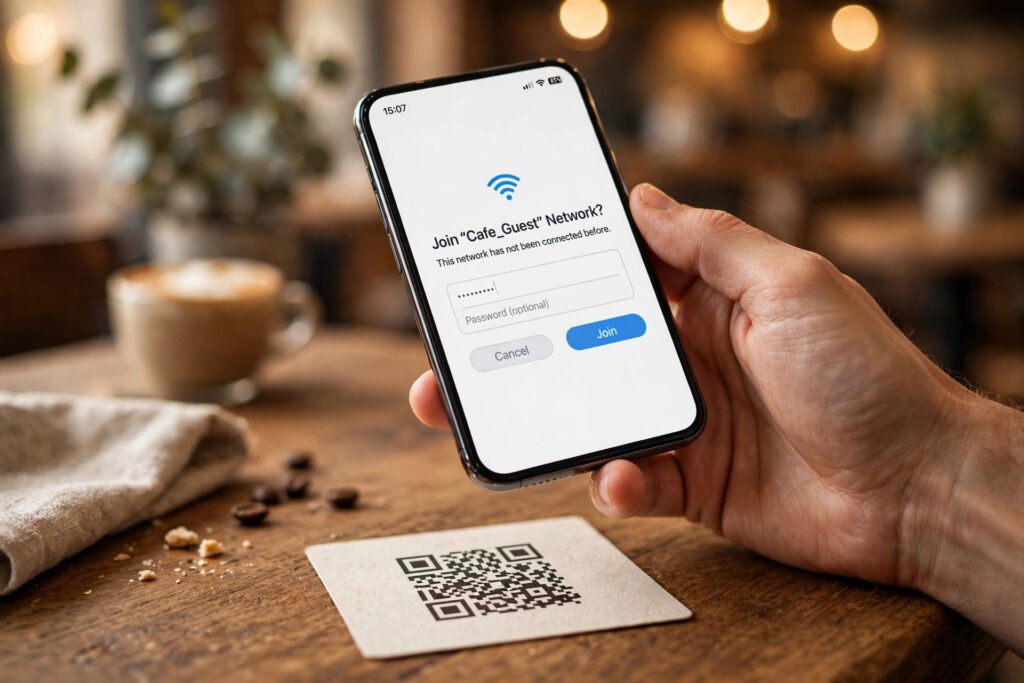
A WiFi QR code is a standard QR code that encodes your network’s login details — the network name (SSID), the password, and the security type — in a format phones understand. When someone scans it with their camera app, their phone recognizes the WIFI: data format and offers to join the network immediately.
Almost every modern phone supports this natively:
- iPhone: the Camera app has read WiFi QR codes since iOS 11 — just point and tap the notification.
- Android: the camera or Google Lens handles WiFi QR codes on Android 10 and newer; many manufacturers (Samsung, Xiaomi) support it even earlier.
No special app is needed on either side — not to create the code, and not to scan it.
Why Make a QR Code for Your WiFi?

Typing a 20-character random password like X7#qL9!mV2@zR4& is painful on a phone keyboard, and reading it aloud letter-by-letter is worse. A WiFi QR code solves this cleanly:
- Guests connect in seconds — one scan instead of typing.
- No password spelling errors — especially with complex passwords full of symbols. A QR code for WiFi password sharing beats reading the password aloud letter by letter.
- Works for businesses — cafes, Airbnbs, offices, and salons can print the code on a card, menu, or wall sign.
- Keeps your password semi-private — guests join without you dictating the password aloud (though anyone with the code can share it, so treat it like the password itself).
- Free and instant — no app install, no account, no cost.
How to Make a QR Code for WiFi: Step by Step
Here’s the exact process using the free generator — it takes about a minute:
Step 1: Open the QR code generator
Go to the free QR code generator. It works entirely in your browser — nothing to install and no signup.
Step 2: Select the WiFi QR option
The generator handles links, plain text, contact details, and Wi-Fi credentials. Choose the WiFi QR option so the tool formats the data correctly for phones.
Step 3: Enter your network name and password
Type your exact network name (SSID) — it must match character-for-character, including capitals and spaces. Then enter your WiFi password exactly as set on your router. If your network has no password (open network), leave the password field empty.
Step 4: Choose size and error correction, then generate
Pick a size (larger is better for printing) and an error-correction level. M is a good default — it keeps the code compact while surviving minor damage. For printed codes that might get scratched or folded, choose Q or H. Then click “Generate QR code” and preview it instantly.
Step 5: Download and test
Click the download option to save a crisp PNG with a proper quiet-zone margin (the white border scanners need). Before printing dozens of copies, scan it once with your own phone to confirm it connects. If it doesn’t, double-check the SSID spelling — that’s the cause 9 times out of 10.
Concrete Example: Cafe Guest Network


Say you run a small cafe with a guest network:
- Network name: CafeGuest_5G
- Password: fresh-brews-2026
- Security: WPA2
You select the WiFi option, enter those exact details, generate at error-correction level Q, and download the PNG. Print it at credit-card size, slip it into a table stand, and customers scan it when they sit down — no more staff reciting the password twenty times a day.
For a home network, the same process works: stick the printed code on the fridge or inside a kitchen cabinet for visitors.
WiFi Security Types: Which One Is Yours?
The generator needs to know your network’s security type so phones connect correctly. Here’s how to pick:
| Security type | What it means | Where you’ll see it |
|---|---|---|
| WPA/WPA2 | Modern home and business networks (most common) | Router settings, most networks from the last 10 years |
| WEP | Old, insecure standard from the early 2000s | Very old routers — consider upgrading |
| None / Open | No password required | Cafes or guest networks without passwords |
If you’re unsure, check the sticker on your router or your router’s admin page — it lists the security mode. When in doubt, WPA/WPA2 is the right choice for nearly all current networks.
Error Correction: Which Level Should You Use?
QR codes include built-in error correction so they still scan when partially damaged. The generator offers four levels:
| Level | Recovery | Best for |
|---|---|---|
| L (7%) | Light damage | On-screen display |
| M (15%) | Moderate damage | General use — the recommended default |
| Q (25%) | Heavy damage | Printed codes handled by many people |
| H (30%) | Maximum damage | Codes with a logo in the center, outdoor signs |
Higher levels make the code slightly denser (more dots), so don’t overdo it — M is right for most WiFi cards and signs.
Where to Put Your WiFi QR Code
- Home: fridge, entryway table, or a framed card in the living room.
- Cafe/restaurant: table tents, the menu, or near the counter.
- Office: reception desk or meeting rooms.
- Airbnb/rental: the welcome book or a wall frame by the entrance.
- Events: registration desk or printed on the event program.
Print at least 3–4 cm (about 1.5 inches) square for reliable scanning; bigger is better for wall signs viewed from a distance.
Tips for a Code That Always Scans
- Test before you print in bulk — one scan with your phone catches SSID typos.
- Keep the quiet zone — don’t crop the white border; scanners need it.
- High contrast only — black on white scans best; avoid fancy color combos.
- Regenerate if you change the password — the code encodes the old password, so update it everywhere.
- Don’t post it publicly online — anyone with the code can join your network.
Frequently Asked Questions
Select the WiFi QR option in a free online QR generator, enter your network name and password, click “Generate QR code,” and download the PNG. No app or account is needed.
No. iPhones (iOS 11+) scan them with the built-in Camera app, and most Android phones (Android 10+) do the same with the camera or Google Lens.
It’s as safe as sharing the password itself — anyone who scans the code can join and can share it further. Don’t post it publicly; share it only with intended guests.
The QR code stops working because it encodes the old password. Generate a new code with the updated password and replace printed copies.
The code still works if guests’ phones support hidden-network QR joining, but many phones struggle with hidden SSIDs via QR. It’s more reliable to unhide the network or share the details manually.
No. A QR code is just an encoding of your network details — it works forever unless you change the network name or password.
Related guides
- Try the free QR code generator — it also makes vCard contact codes and link codes, all free with no watermark.
- Discover 12 smart ways small businesses can use QR codes in 2026 for more ideas.
- Learn what decoding means and how to decode Base64 online for free with our step-by-step guide.