
Have you ever wished you could build your own AI assistant, but coding felt like too much work?
You are not alone. Most people want AI tools that just work, without hiring a developer.
That’s where VectorShift comes in. It lets you build AI agents and workflows by dragging and dropping boxes on a screen.
In this article, I will walk you through everything I found out about VectorShift. No fluff, no hype. Just plain facts, honest opinions, and real tips you can use today.
What Is VectorShift?
VectorShift is a no-code platform for building AI agents, chatbots, and automated workflows.
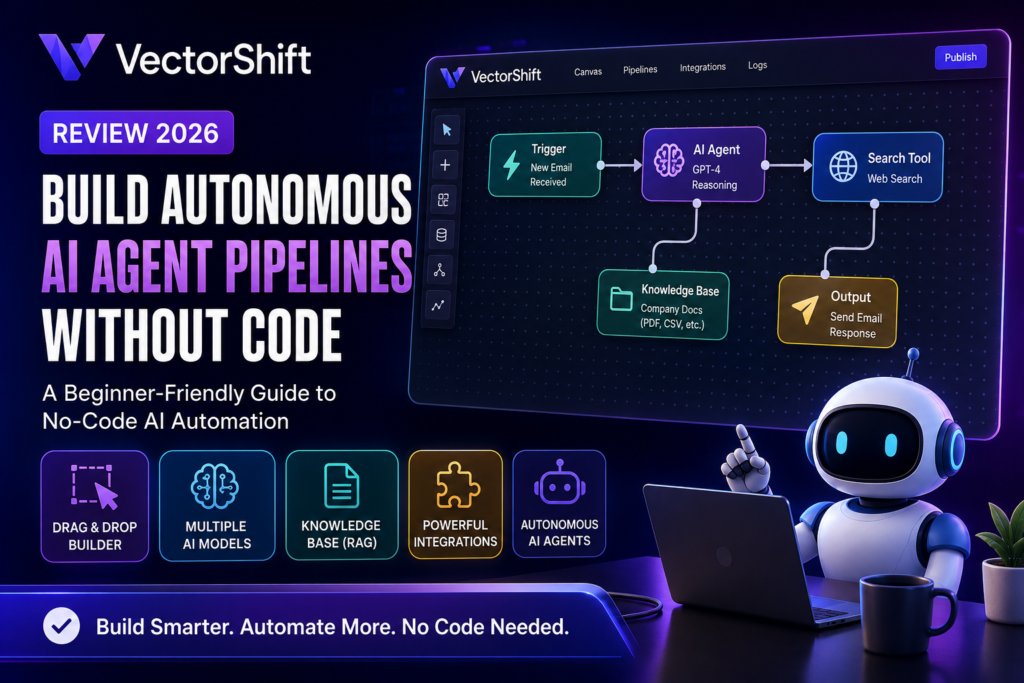
Think of it like a builder’s kit. Instead of writing Python code, you connect blocks (called “nodes”) on a canvas to create a working AI pipeline.
The company behind it is based in San Francisco and was started in 2023. It’s still a fairly young company, but it moves fast and adds new features often.
You can use VectorShift to build things like customer support bots, document summarizers, research agents, and automated email responders.
It connects to popular AI models like GPT-4, Claude, and Llama. So you’re not locked into just one AI brain — you can pick whichever model fits your task best.
The big selling point is autonomy. Instead of just answering one question, VectorShift agents can plan steps, use tools, and complete multi-step tasks on their own.
Key Features Of VectorShift
Here are the features that stood out to me the most, explained in plain language.
Drag-and-drop pipeline builder
You build workflows visually. Each node does one job, like fetching data, calling an AI model, or sending an email.
Multiple AI models in one place
You’re not stuck with one AI provider. You can switch between OpenAI, Anthropic, and open-source models depending on cost or quality needs.
Pre-built templates
If you don’t want to start from a blank canvas, VectorShift gives you ready-made templates for common tasks like chatbots or data extraction.
Knowledge bases
You can upload your own documents (PDFs, CSVs, JSON files) and let the AI answer questions using only that data. This is often called RAG, or retrieval-augmented generation.
Integrations
VectorShift connects with tools like Google Drive, Salesforce, HubSpot, and thousands of other apps. This means your AI agent can actually take action, not just talk.
Code SDK option
If you eventually outgrow the visual builder, there’s a code option too. So it grows with you as your skills grow.
Automation triggers
You can set agents to run automatically when something happens, like a new email arriving or a form being filled out. This is what makes agents feel “autonomous” instead of manual.
Chatbot and interface builder
You can turn any pipeline into a chat widget or web app interface, so other people can use it without touching the backend.
How To Use VectorShift (Step-By-Step For Beginners)
Let’s break this down into simple steps. This is the process I’d recommend for someone starting fresh.
Step 1: Sign up for a free account
Go to the VectorShift website and create an account. No credit card is needed for the free plan.
Step 2: Pick a starting point
You can either start from a blank canvas or pick a template close to what you want to build. Templates save a lot of time.
Step 3: Add your first node
This is usually an “input” node, which decides what kind of data or question comes into your pipeline first.
Step 4: Connect an AI model node
Drag in a model node (like GPT-4 or Claude) and connect it to your input. This is the “brain” of your pipeline.
Step 5: Add tools or data sources
If your agent needs to search the web, read a PDF, or pull data from a spreadsheet, add those nodes here and connect them.
Step 6: Set up the output
Decide where the final result goes. It could be a chat reply, an email, or a saved file.
Step 7: Test your pipeline
Run it with sample input before going live. This step catches most beginner mistakes early.
Step 8: Deploy it
Once it works, you can turn it into a chatbot, embed it on a website, or connect it to an automation trigger so it runs on its own.
That’s really it. No coding classes required, though a little patience helps in the first hour.
Real-Life Use Cases Of VectorShift
Reading feature lists is boring. Let’s talk about what people actually build with this tool.
Customer support agent
A small online store builds a chatbot that answers order questions using their product catalog as the knowledge base. It cuts support tickets by handling repeat questions automatically.
Sales lead qualifier
A sales team connects VectorShift to their CRM. New leads get automatically summarized and scored before a human ever looks at them.
Research assistant
A marketing team builds an agent that reads competitor websites and news, then writes a short weekly summary. This saves hours of manual reading every week.
Contract reviewer
A legal-adjacent business uses a knowledge base of past contracts. The agent flags unusual clauses in new documents before a human reviews them.
HR onboarding bot
New employees ask the chatbot questions about company policy instead of emailing HR. The bot pulls answers straight from the employee handbook.
Content repurposing pipeline
A creator uploads a long video transcript, and the pipeline automatically writes a blog post, three social captions, and an email newsletter from it.
None of these need a developer on staff. That’s the whole point of a no-code platform like this.
Pros And Cons Of VectorShift
I’ll be honest here. No tool is perfect, and you deserve the full picture.
Pros
- Genuinely easy to learn, even if you’ve never built anything technical before.
- You can mix and match different AI models instead of being locked to one.
- The knowledge base feature works well for company-specific data.
- A free plan exists, so you can test it before spending money.
- Templates cut down setup time a lot for common use cases.
- It supports both no-code and code, so it doesn’t box in advanced users.
Cons
- The free plan is quite limited. You’ll hit usage limits fast if you’re testing seriously.
- Complex pipelines with many nodes can get visually messy and hard to manage.
- Some integrations work better than others. A few feel less polished.
- Pricing can climb quickly once you need more pipelines and higher usage.
- Documentation, while decent, sometimes lags behind new features.
- Debugging a failed automation isn’t always obvious for total beginners.
VectorShift Pricing
Pricing can change, so always check the official website for the latest numbers before you commit.
Based on what’s publicly listed, VectorShift runs on a freemium model with three tiers.
The free Starter plan gives you one pipeline, limited monthly actions, small file storage, and a small amount of free AI credit.
The Standard plan is a mid-tier option, priced roughly in the $20 to $25 per month range depending on monthly vs annual billing.
The Pro plan sits higher, roughly in the $100 to $125 per month range, and unlocks unlimited pipelines along with much higher usage limits.
Each tier increases things like file storage, number of interfaces, knowledge base size, and integrations. Heavier AI usage also draws from usage-based credits on paid plans.
My honest take: the free plan is fine for learning and small tests. But if you plan to actually run a business process on it daily, budget for at least the Standard plan.
How VectorShift Compares To Other Tools
Let’s look at two tools people often compare VectorShift with.
VectorShift vs Zapier
Zapier is older and more focused on connecting apps together in simple “if this, then that” style automations.
VectorShift is more focused on AI reasoning and multi-step agent behavior, not just app connections.
If you want simple triggers between apps, Zapier might feel more familiar. If you want an AI that thinks through steps and uses a knowledge base, VectorShift fits better.
VectorShift vs Relevance AI
Relevance AI is also a no-code AI agent builder, so it’s a closer competitor than Zapier.
Both let you build multi-step agents visually. The difference often comes down to interface style, pricing, and which integrations feel smoother for your specific stack.
If you’re choosing between the two, I’d suggest trying the free tiers of both for a week before deciding. Your actual use case will tell you more than any comparison chart.
Common Mistakes Beginners Make With VectorShift
I noticed a pattern in how new users tend to struggle. Here’s what to watch out for.
Trying to build everything in one giant pipeline
Start small. One task, one pipeline. Combine them later once each piece works.
Skipping the testing step
Many people connect nodes and deploy immediately. Always test with sample data first.
Ignoring the knowledge base setup
If your documents aren’t formatted or uploaded properly, your AI answers will be vague or wrong.
Not checking usage limits
Free plan users sometimes get surprised when their pipeline stops mid-month. Keep an eye on your action count.
Choosing the wrong AI model for the task
Not every model is great at every job. A cheaper model might be fine for simple replies, but weak for complex reasoning tasks.
Forgetting to set fallback behavior
If a tool or API call fails, your agent should have a backup response. Beginners often skip this and get broken chatbots.
Overcomplicating triggers
Setting too many automatic triggers at once can create confusing loops. Start with one trigger and expand slowly.
FAQs About VectorShift
Is VectorShift really free to use?
Yes, there’s a free Starter plan. It has limited pipelines and monthly actions, but no credit card is needed to sign up.
Do I need to know how to code?
No. The core builder is drag-and-drop. Coding is only needed if you want extra flexibility through the SDK.
Which AI models can I use inside VectorShift?
You can connect models like GPT-4, Claude, and various open-source options like Llama, depending on your plan.
Can VectorShift agents take real actions, not just chat?
Yes. Through integrations, agents can update spreadsheets, send emails, or interact with tools like Salesforce and Google Drive.
Is my data safe if I upload company documents?
VectorShift stores documents for the knowledge base feature, but always check their current privacy and security policy for details before uploading sensitive data.
Can I turn my pipeline into a chatbot for my website?
Yes, there’s a built-in interface builder that turns pipelines into embeddable chat widgets or simple web apps.
What happens if I go over my plan’s usage limit?
Your pipeline actions may pause until the next billing cycle, or you may need to upgrade your plan or add credits.
Is VectorShift good for beginners with zero technical background?
Yes, for simple pipelines. Complex multi-agent setups have a small learning curve, but nothing that a few hours of practice can’t fix.
Conclusion: Should You Try VectorShift?
VectorShift is a solid pick if you want to build AI agents without hiring a developer.
It’s not perfect. The free plan is limited, and complex pipelines can get messy if you’re not careful.
But for small businesses, solo founders, or teams wanting to automate repetitive work, it hits a good balance between simplicity and real power.
My honest advice: start with the free plan, build one small pipeline for a real problem you have, and see how it feels before upgrading.
That one small test will tell you more than any review, including this one.
